
Intelligent Clipboard
Intelligent Clipboard helps you find what you're about to paste. Open Paste, and it suggests the items from your history that fit what you're working on, so the right one is a click away. Everything runs on your Mac, powered by Apple Intelligence.
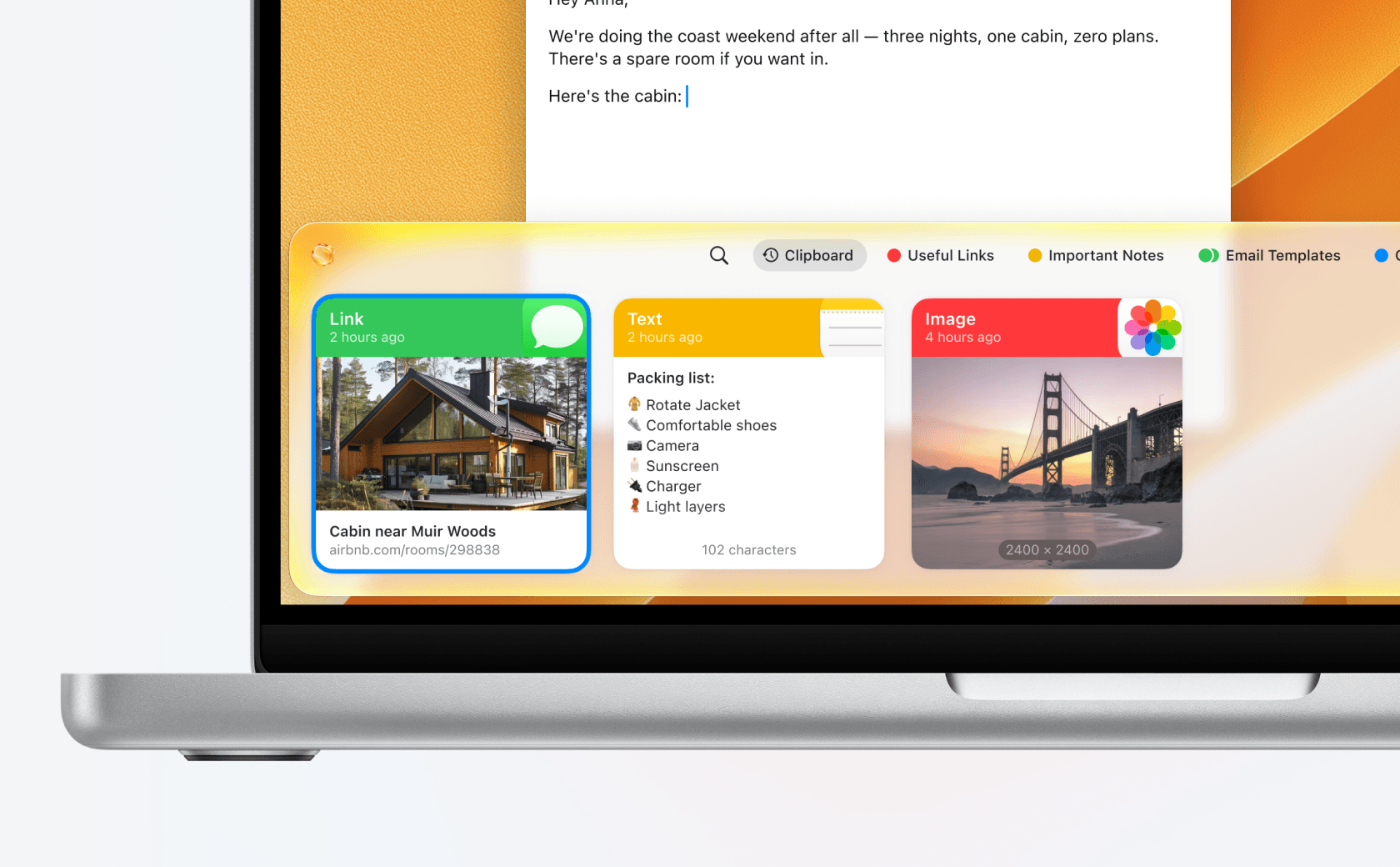
Intelligent Clipboard is available on macOS 26 or later with Apple Intelligence turned on.
Get started
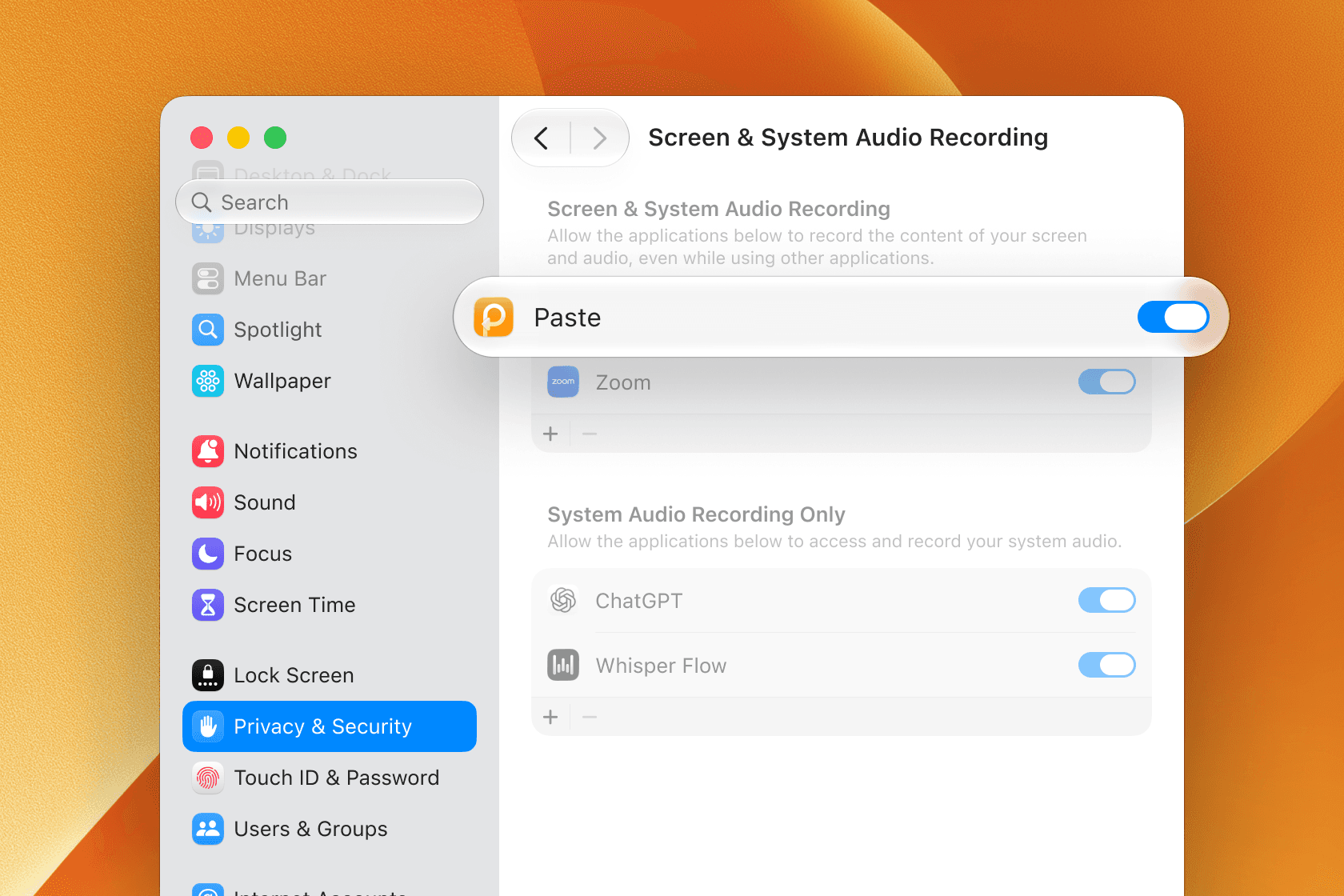
Intelligent Clipboard lives behind the Suggestions button, the sparkle in the Paste toolbar. The first time you click it, Paste asks for Screen Recording access so it can see which app you're pasting into, and walks you through the setup:
-
Click Allow Screen Access…, then Open System Settings.
-
Turn on Paste in the Screen & System Audio Recording list.
-
Quit and reopen Paste when macOS asks you to.
From then on, Intelligent Clipboard follows what you're doing. Click Suggestions while writing an email and Paste brings up the link you copied for it. Switch to your code editor and click it again, and the snippet you copied earlier is at the top instead. Click the button once more to see your full history.
Privacy and control
Intelligent Clipboard needs Screen Recording access, but Paste doesn't record your screen. Paste looks at the app you're pasting into only while the Paste window is open, picks the suggestions right there on your Mac, and keeps nothing once the window closes. Nothing from your screen is stored or sent anywhere.
Suggestions come from your own clipboard history, so nothing in it is moved, changed, or deleted. Apps you've added to Ignore Applications in Paste Settings → Privacy are never read, and password fields never produce suggestions.
Turn off Intelligent Clipboard
If you'd rather not use Intelligent Clipboard, you can turn it off at any time: right-click the Suggestions button and choose Turn Off…, or use the switch in Paste Settings → Intelligence. You can always enable it again from the same place.