Your clipboard just got power. Meet Power Search.

December 9, 2025

Dec 9, 2025

Power Search: your clipboard just got some power

Paste has always been by your side, saving everything you copy and keeping it within reach. Over the years, that’s added up to countless ideas found, things saved, and probably millions of seconds you didn’t have to spend searching.

To make that experience even better, we’re introducing Power Search — a new way to find what you copy, built for speed, clarity, and precision. It brings the search experience in Paste to a completely new level, helping you rediscover anything you’ve ever copied across all your devices.

A Clipboard That Thinks Ahead

Every day we copy hundreds of things — notes, links, screenshots, snippets, and passing thoughts. Over time, Paste turns all of that into a personal archive of your work. Power Search makes that archive instantly usable. It brings context and structure to everything you copy, turning search into a natural part of your workflow.

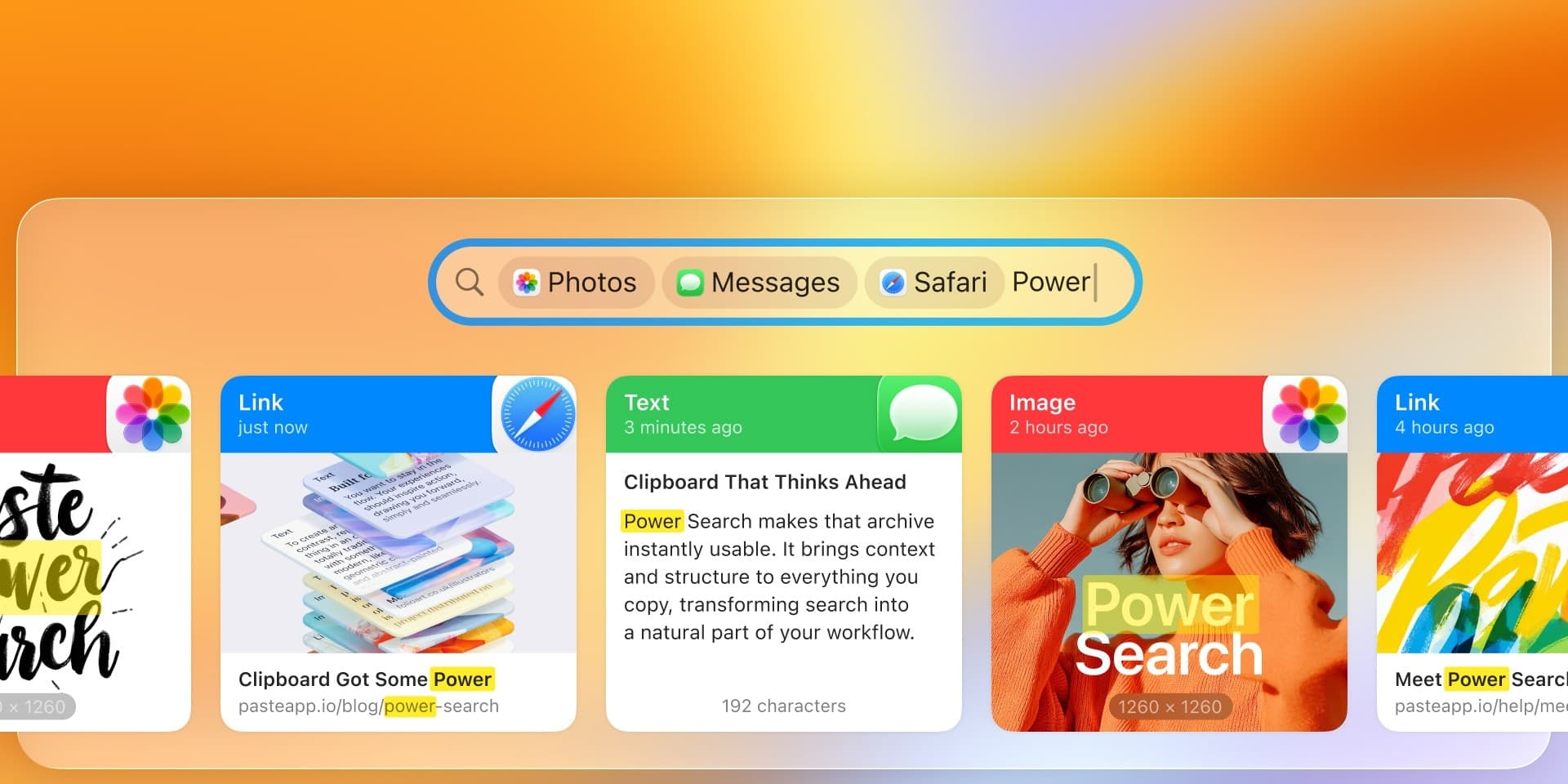
Let’s say you copied a ticket link from your task manager a few weeks ago but can’t recall its name or where you saved it. Start typing a few words, and Paste instantly begins surfacing matches, even if you mistype them. Add a filter for the app you used or narrow by date, and the right link appears in seconds.

A Clipboard That Thinks Ahead

Filters are at the heart of Power Search. You can search by content type — text, images, files, links or by application, finding exactly what you copied from Safari, Mail, Slack, or Xcode. Filter by device when you’re switching between your Mac and iPhone, or by date range to find what you worked on last week.

It all happens in real time. As you type, Paste suggests filters inline, completing your thoughts before you finish them. Intelligent ranking keeps the most relevant and recent results on top, while visual tokens show which filters are active so you always know how your search is defined.

For developers, it means instantly finding a code snippet or error message copied days ago. For content creators, it’s the ability to locate a saved reference image or a quote from Safari in seconds. For students, it’s rediscovering notes and citations across subjects and devices.

With Power Search, every copied item, from text to screenshots, becomes part of an organized, searchable system that feels effortless to use. It’s not just about finding things faster; it’s about seeing your clipboard as a connected workspace that understands what you copy and how you work.

Beyond Text: Search Inside Images

Not everything we copy is text. Screenshots, photos, and visual notes often hold details we can’t easily find again, until now.

Power Search brings text recognition in images to Paste, making your entire visual history searchable. It reads the text inside screenshots, documents, and photos, turning every captured detail into something you can instantly rediscover.
Search Inside Images

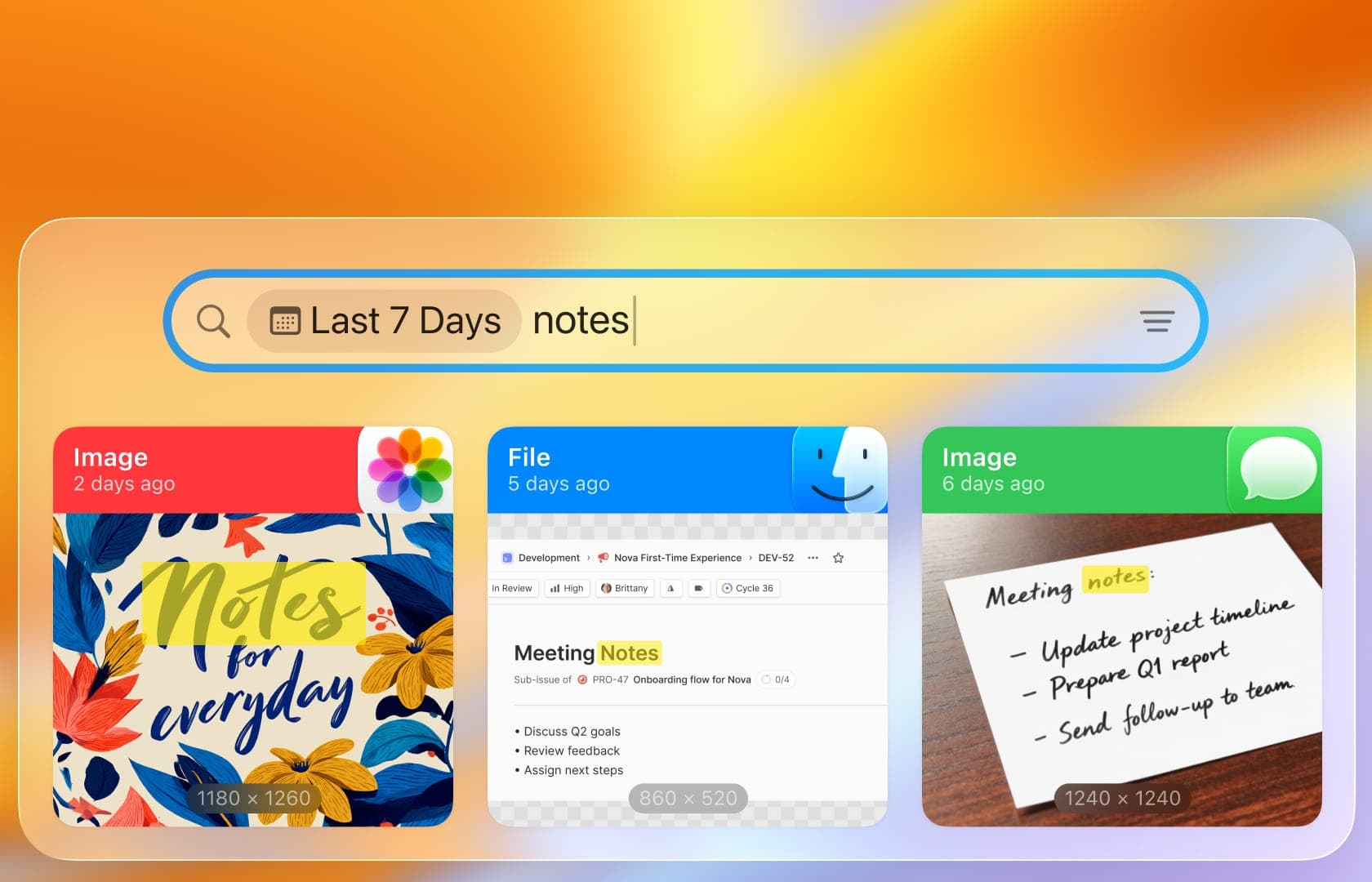
Imagine you saved a screenshot of a design review in Figma, a photo of meeting notes on your desk, or an error message from your development console. With Power Search, you can type any word that appears in those images, and Paste immediately finds them. The matching text is highlighted, so you can see exactly where your result comes from.

Whether you’re scanning through research, revisiting a saved article, or searching for a specific reference buried in screenshots, Power Search makes it effortless. With text recognition, your images become living parts of your clipboard — searchable, connected, and ready when you are.

Designed for Real Work

Power Search fits naturally into the way people use Paste every day. It’s built for real workflows, whether you’re creating, coding, studying, or organizing.

  • For designers: Use filters by app or image to quickly find references, assets, or screenshots from tools like Figma or Safari.

  • For writers and content creators: Combine text and date filters to rediscover quotes, notes, or drafts — even those saved as screenshots.

  • For developers: Filter by app, content type, or device to locate snippets, logs, and configuration text across projects.

  • For students and researchers: Search by keyword or app to revisit sources, citations, and study notes gathered over time.

Power Search adapts to your workflow, giving you the right tools to find what matters most.

Power Search brings a new level of clarity and control to Paste. It’s about finding what you need faster, staying in flow, and keeping every idea within reach.


Discover the update and try Power Search in Paste →

Paste has always been by your side, saving everything you copy and keeping it within reach. Over the years, that’s added up to countless ideas found, things saved, and probably millions of seconds you didn’t have to spend searching.

To make that experience even better, we’re introducing Power Search — a new way to find what you copy, built for speed, clarity, and precision. It brings the search experience in Paste to a completely new level, helping you rediscover anything you’ve ever copied across all your devices.

A Clipboard That Thinks Ahead

Every day we copy hundreds of things — notes, links, screenshots, snippets, and passing thoughts. Over time, Paste turns all of that into a personal archive of your work. Power Search makes that archive instantly usable. It brings context and structure to everything you copy, turning search into a natural part of your workflow.

Let’s say you copied a ticket link from your task manager a few weeks ago but can’t recall its name or where you saved it. Start typing a few words, and Paste instantly begins surfacing matches, even if you mistype them. Add a filter for the app you used or narrow by date, and the right link appears in seconds.

A Clipboard That Thinks Ahead

Filters are at the heart of Power Search. You can search by content type — text, images, files, links or by application, finding exactly what you copied from Safari, Mail, Slack, or Xcode. Filter by device when you’re switching between your Mac and iPhone, or by date range to find what you worked on last week.

It all happens in real time. As you type, Paste suggests filters inline, completing your thoughts before you finish them. Intelligent ranking keeps the most relevant and recent results on top, while visual tokens show which filters are active so you always know how your search is defined.

For developers, it means instantly finding a code snippet or error message copied days ago. For content creators, it’s the ability to locate a saved reference image or a quote from Safari in seconds. For students, it’s rediscovering notes and citations across subjects and devices.

With Power Search, every copied item, from text to screenshots, becomes part of an organized, searchable system that feels effortless to use. It’s not just about finding things faster; it’s about seeing your clipboard as a connected workspace that understands what you copy and how you work.

Beyond Text: Search Inside Images

Not everything we copy is text. Screenshots, photos, and visual notes often hold details we can’t easily find again, until now.

Power Search brings text recognition in images to Paste, making your entire visual history searchable. It reads the text inside screenshots, documents, and photos, turning every captured detail into something you can instantly rediscover.

Search Inside Images

Imagine you saved a screenshot of a design review in Figma, a photo of meeting notes on your desk, or an error message from your development console. With Power Search, you can type any word that appears in those images, and Paste immediately finds them. The matching text is highlighted, so you can see exactly where your result comes from.

Whether you’re scanning through research, revisiting a saved article, or searching for a specific reference buried in screenshots, Power Search makes it effortless. With text recognition, your images become living parts of your clipboard — searchable, connected, and ready when you are.

Designed for Real Work

Power Search fits naturally into the way people use Paste every day. It’s built for real workflows, whether you’re creating, coding, studying, or organizing.

  • For designers: Use filters by app or image to quickly find references, assets, or screenshots from tools like Figma or Safari.

  • For writers and content creators: Combine text and date filters to rediscover quotes, notes, or drafts — even those saved as screenshots.

  • For developers: Filter by app, content type, or device to locate snippets, logs, and configuration text across projects.

  • For students and researchers: Search by keyword or app to revisit sources, citations, and study notes gathered over time.

Power Search adapts to your workflow, giving you the right tools to find what matters most.

Power Search brings a new level of clarity and control to Paste. It’s about finding what you need faster, staying in flow, and keeping every idea within reach.

Discover the update and try Power Search in Paste →

Paste has always been by your side, saving everything you copy and keeping it within reach. Over the years, that’s added up to countless ideas found, things saved, and probably millions of seconds you didn’t have to spend searching.

To make that experience even better, we’re introducing Power Search — a new way to find what you copy, built for speed, clarity, and precision. It brings the search experience in Paste to a completely new level, helping you rediscover anything you’ve ever copied across all your devices.

A Clipboard That Thinks Ahead

Every day we copy hundreds of things — notes, links, screenshots, snippets, and passing thoughts. Over time, Paste turns all of that into a personal archive of your work. Power Search makes that archive instantly usable. It brings context and structure to everything you copy, turning search into a natural part of your workflow.

Let’s say you copied a ticket link from your task manager a few weeks ago but can’t recall its name or where you saved it. Start typing a few words, and Paste instantly begins surfacing matches, even if you mistype them. Add a filter for the app you used or narrow by date, and the right link appears in seconds.

A Clipboard That Thinks Ahead

Filters are at the heart of Power Search. You can search by content type — text, images, files, links or by application, finding exactly what you copied from Safari, Mail, Slack, or Xcode. Filter by device when you’re switching between your Mac and iPhone, or by date range to find what you worked on last week.

It all happens in real time. As you type, Paste suggests filters inline, completing your thoughts before you finish them. Intelligent ranking keeps the most relevant and recent results on top, while visual tokens show which filters are active so you always know how your search is defined.

For developers, it means instantly finding a code snippet or error message copied days ago. For content creators, it’s the ability to locate a saved reference image or a quote from Safari in seconds. For students, it’s rediscovering notes and citations across subjects and devices.

With Power Search, every copied item, from text to screenshots, becomes part of an organized, searchable system that feels effortless to use. It’s not just about finding things faster; it’s about seeing your clipboard as a connected workspace that understands what you copy and how you work.

Beyond Text: Search Inside Images

Not everything we copy is text. Screenshots, photos, and visual notes often hold details we can’t easily find again, until now.

Power Search brings text recognition in images to Paste, making your entire visual history searchable. It reads the text inside screenshots, documents, and photos, turning every captured detail into something you can instantly rediscover.

Search Inside Images

Imagine you saved a screenshot of a design review in Figma, a photo of meeting notes on your desk, or an error message from your development console. With Power Search, you can type any word that appears in those images, and Paste immediately finds them. The matching text is highlighted, so you can see exactly where your result comes from.

Whether you’re scanning through research, revisiting a saved article, or searching for a specific reference buried in screenshots, Power Search makes it effortless. With text recognition, your images become living parts of your clipboard — searchable, connected, and ready when you are.

Designed for Real Work

Power Search fits naturally into the way people use Paste every day. It’s built for real workflows, whether you’re creating, coding, studying, or organizing.

  • For designers: Use filters by app or image to quickly find references, assets, or screenshots from tools like Figma or Safari.

  • For writers and content creators: Combine text and date filters to rediscover quotes, notes, or drafts — even those saved as screenshots.

  • For developers: Filter by app, content type, or device to locate snippets, logs, and configuration text across projects.

  • For students and researchers: Search by keyword or app to revisit sources, citations, and study notes gathered over time.

Power Search adapts to your workflow, giving you the right tools to find what matters most.

Power Search brings a new level of clarity and control to Paste. It’s about finding what you need faster, staying in flow, and keeping every idea within reach.

Discover the update and try Power Search in Paste →