Mac clipboard shortcuts: when to use each one
Command-C and Command-V do most of the work on a Mac, and for most people that is where the clipboard ends. macOS has a handful of other clipboard shortcuts, and each one exists for a job that plain copy and paste handles awkwardly: text that arrives carrying formatting from somewhere else, a screenshot you want in a message rather than on your desktop, a file that should move instead of being duplicated.
Below is each of those jobs, the keys that do it, and what happens when you press them. All of them work on a clipboard that holds one thing at a time, and lifting that limit is what Paste, our clipboard manager, does. If you only want the list, there is a table of everything at the end.
Text that lands with the wrong formatting
You copy a paragraph out of a web page or a PDF, paste it into a document, and it arrives in the font, size, and color it had on the other side. Then you select it again and clean it up by hand.
Option-Shift-Command-V pastes the same text with the styling dropped, so it takes on the formatting of whatever it lands in. Apple's keyboard shortcuts reference calls it Paste and Match Style, and it works in most apps that handle styled text.
The reverse job has its own pair. Option-Command-C copies the formatting of a selection rather than its content, and Option-Command-V applies that formatting somewhere else. It is the quicker way to make three headings match a fourth one you already got right.
A screenshot that goes straight into the message
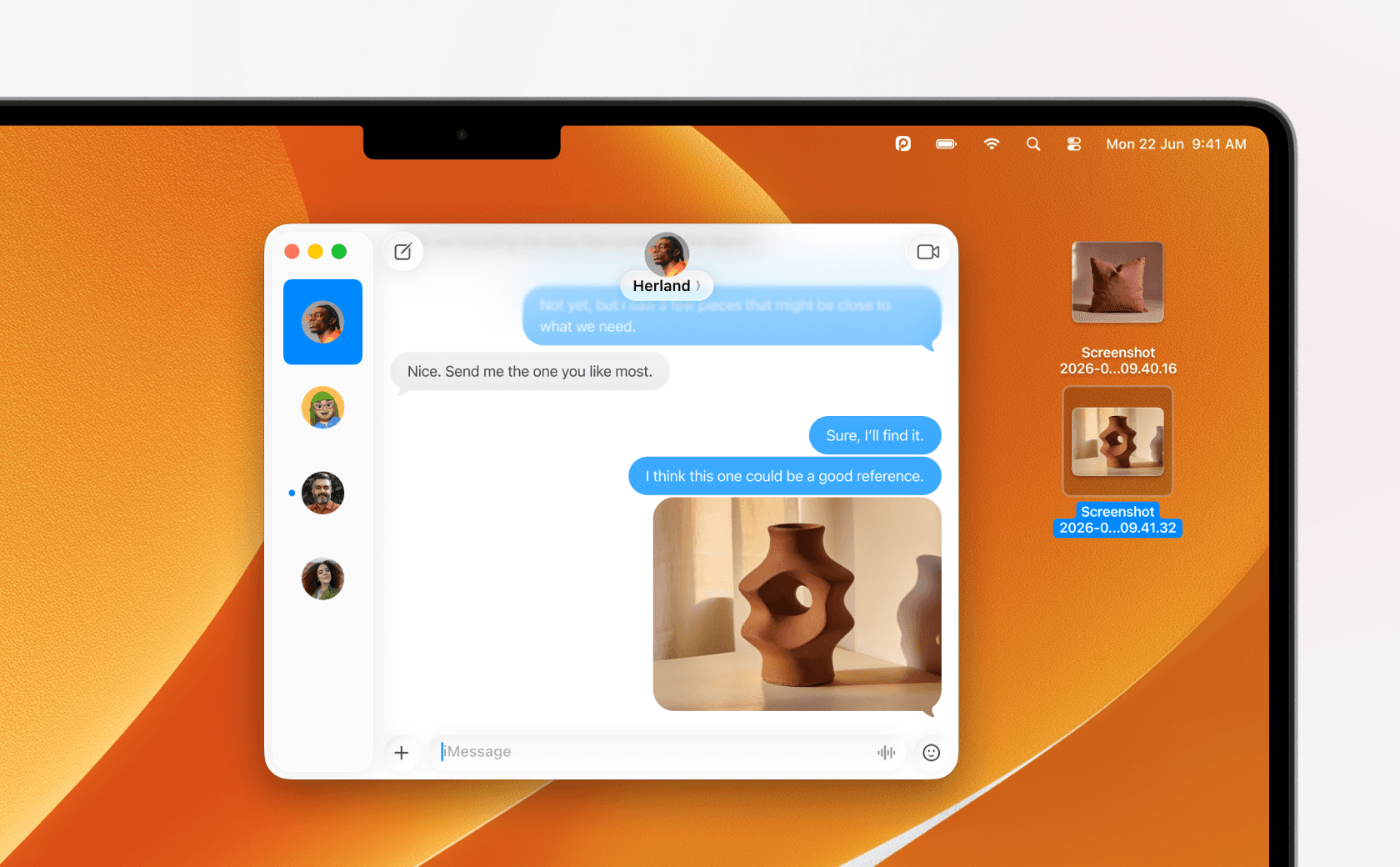
By default a screenshot becomes a file on your desktop. To send it you drag that file into the conversation, and later you clear the pile of them off your desktop.
Adding Control changes where the picture goes. Control-Shift-Command-4 captures a selection and Control-Shift-Command-3 captures the whole screen, and both put the image on the clipboard instead of saving anything (Apple Support). Command-V drops it into the message, and nothing is left behind to tidy up.
Files that should move rather than multiply
Sorting a folder out usually goes: copy the file into its new home, go back, delete the original. The Finder has a shortcut for that second half.
Copy the file with Command-C, open the folder you want it in, then press Option-Command-V. Apple describes it as moving "the files in the Clipboard from their original location to the current location", so you finish with one copy in the right place rather than two.
The same combination does two different things depending on where you are, which is worth knowing before it surprises you: in a document it pastes a copied style, and in the Finder it moves files.
Something you copied a few minutes ago
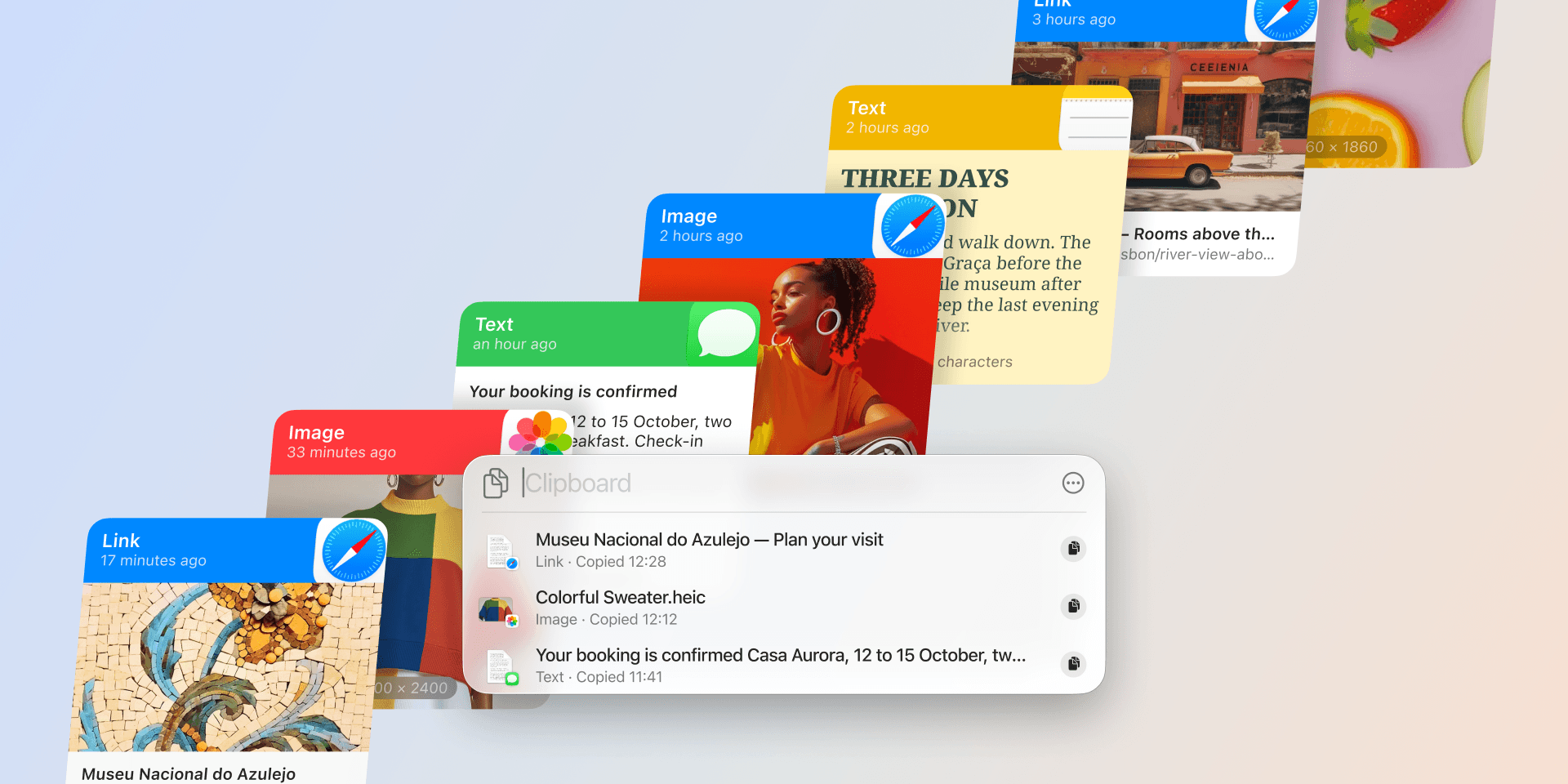
A verification code arrives, you copy it, then you copy a link and the code is gone. Since macOS 26 Tahoe, and still in macOS 27 Golden Gate, the Mac keeps a short clipboard history for exactly this, and it lives in Spotlight, the search panel that opens with Command-Space.
Press Command-4 from there and the panel switches to your clipboard. The first time, macOS asks you to allow it: the button reads Allow on macOS 27 and Enable on Tahoe, alongside a note that sensitive information may appear on the clipboard (Apple Support, Tahoe version). After that you can type to search the list, press Command-C to put an item back on the clipboard, and clear the whole history from the same panel.
Two things shape how far it reaches. No single key combination opens the clipboard on its own, so the way in is Command-Space followed by Command-4. And the list empties itself on a schedule you choose, from 30 minutes up to 7 days, on the Mac you copied on. Our guide to the Mac's built-in clipboard history covers the retention settings and what the list holds.
A shortcut the Mac doesn't come with
If a command you use all day sits behind four keys, you can give it your own. In System Settings, open Keyboard, click Keyboard Shortcuts, choose App Shortcuts, and type the menu command exactly as it appears in the app, punctuation included. Paste and Match Style is the usual candidate.
What you can reach is set by Apple's own rule: shortcuts can be created "only for existing menu commands" (Apple Support). A menu item in the app you write in qualifies. The Spotlight clipboard panel is not a menu command, so it stays on Command-Space then Command-4.
Everything you copied, on one shortcut
Each scenario above has its own key. What they share is the moment you want something back after it has left the clipboard, and that is what Paste is for: Shift-Command-V in any app opens your history as a timeline you can search, kept for as long as you choose rather than to the end of a rolling window.
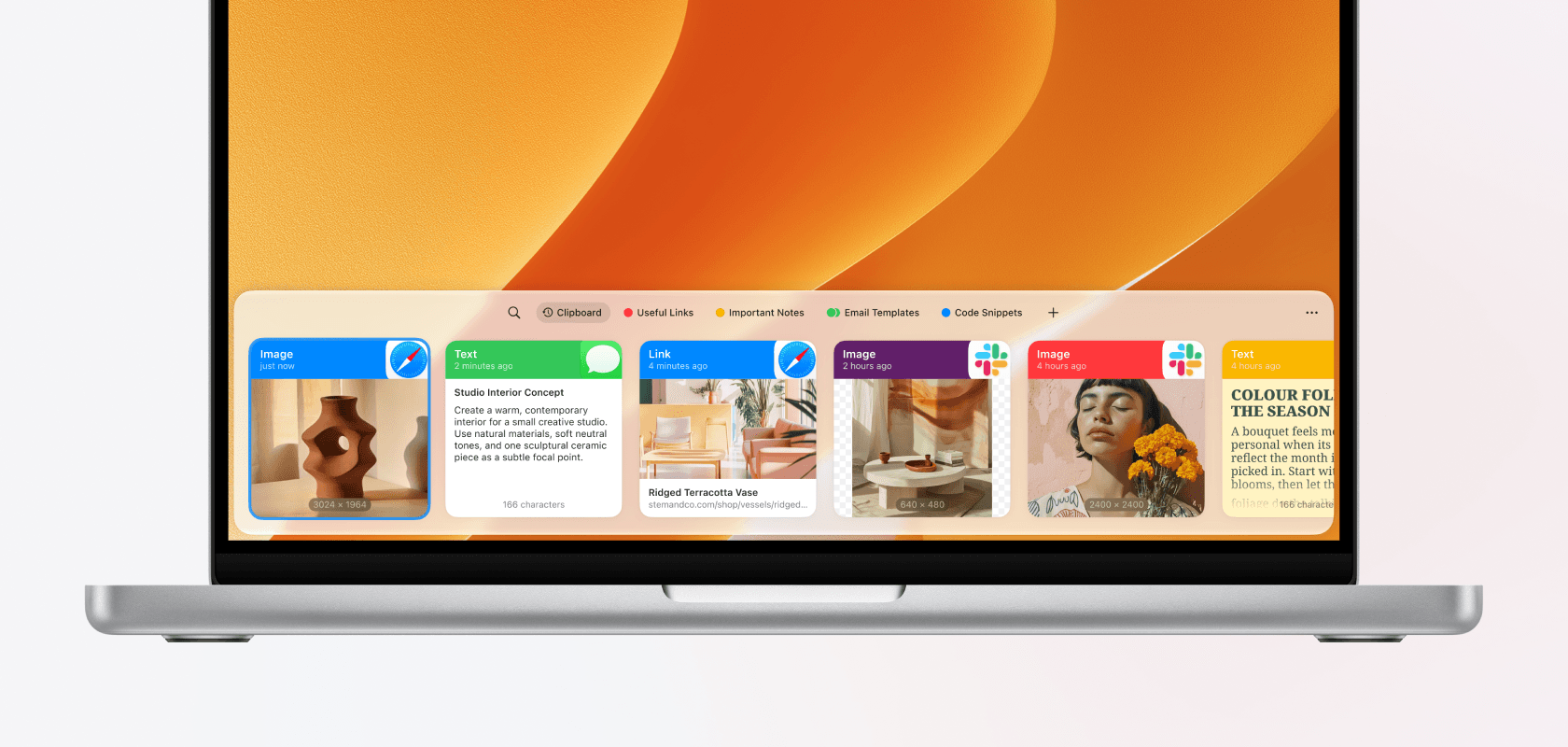
From that window the keyboard does the rest. Return pastes what you selected and Shift-Return pastes it as plain text, the same job Option-Shift-Command-V does in the system. Command-1 through Command-9 paste by number, so a snippet you reuse all day is two keys away with Quick Paste. Command-F searches everything, including text inside screenshots. Shift-Command-C starts a Paste Stack, for copying several things and pasting them in order.
Your history syncs across your Mac, iPhone, and iPad through your private iCloud, so the link you copied on your laptop is on your phone when you need it. The full list of keys is in keyboard shortcuts, and the ones you reach for most can be changed in Paste Settings under Shortcuts.
All of them in one place
Everything above, with the job each one is for. The last row is Paste; the rest come with macOS.
| Shortcut | What it's for |
|---|---|
| Command-C, Command-X, Command-V | Copy, cut, and paste anywhere on the Mac |
| Command-Z | Undo the paste you just made |
| Option-Shift-Command-V | Paste text without the formatting it came with |
| Option-Command-C, then Option-Command-V | Copy a style from one place and apply it in another |
| Option-Command-V in the Finder | Move the copied files here instead of leaving two copies |
| Control-Shift-Command-3 or 4 | Put a screenshot on the clipboard instead of your desktop |
| Command-Space, then Command-4 | Open the Mac's own clipboard history, on macOS 26 and later |
| Shift-Command-V | Open your full, searchable history in Paste |
Paste is free for a week across your Mac, iPhone, and iPad, long enough to tell whether a history that lasts fits how you work.
- Download it for free, and it works the moment you install it.
- Copy as you normally would, then press Shift-Command-V to see everything.
- Keep what you reuse in pinboards, and find anything with Power Search.
See plans and pricing, or read how copy and paste works across your Apple devices.
Frequently asked questions
What is the clipboard shortcut on a Mac?
Command-C copies to the clipboard, Command-X cuts, and Command-V pastes. On macOS 26 Tahoe and macOS 27 Golden Gate, Command-Space followed by Command-4 opens your clipboard history in Spotlight. Paste opens a full, searchable history on Shift-Command-V.
Is there a keyboard shortcut for clipboard history on Mac?
On macOS 26 and 27 you reach the history through Spotlight: Command-Space, then Command-4. There is no separate combination that opens it directly, and the history stays on that Mac. Shift-Command-V opens your history in Paste, on your Mac, iPhone, and iPad.
How do you paste without formatting on a Mac?
Option-Shift-Command-V pastes and matches the style of the text around it. In Paste, hold Shift while pasting, or press Shift-Return, to paste as plain text.
How do you copy a screenshot to the clipboard on a Mac?
Press Control along with the usual keys. Control-Shift-Command-3 puts a picture of the whole screen on the clipboard and Control-Shift-Command-4 puts a selection there, instead of saving a file to your desktop.
Can you change the clipboard shortcut on a Mac?
You can create your own combination for any existing menu command in System Settings, under Keyboard then Keyboard Shortcuts then App Shortcuts. Paste's own shortcuts, including Shift-Command-V, can be changed in Paste Settings under Shortcuts.