How to see clipboard history on iPhone
You copied an address, then copied a phone number, and now the address is gone. You go looking for where iPhone keeps the things you've copied, and there's nothing to open. No list, no history, no way back.
That's not a bug, and you're not missing a setting. iPhone keeps only the single most recent thing you copied. The honest answer to "how do I see my clipboard history on iPhone" is that iOS doesn't keep one. Below is exactly what the system does and doesn't do, and how to get a real, searchable history that follows you across your devices.
The short answer: iPhone has no built-in clipboard history
When you copy something on iPhone, it goes onto the system clipboard, which holds exactly one item. Copy something else and it replaces what was there. There's no clipboard app to open, no list in Settings, and no gesture to scroll back through earlier copies.
That is still true in iOS 27, the version Apple released in September 2026. The Mac went a different route: as of macOS 26 Tahoe, macOS has a built-in clipboard history in Spotlight. On iPhone the clipboard holds one item at a time, and that is a deliberate design choice tied to how iOS protects clipboard access, which we get into below. So when a search result promises a hidden way to "view clipboard history on iPhone," it's describing an app you install, not a setting Apple ships.
If you only need the thing you copied a second ago, the system clipboard is enough: copy, switch apps, paste. The moment you copy a second thing and want the first one back, you need something that held on to it. That's what a clipboard app adds.
What iOS lets you do with the clipboard today
Here is what the system clipboard gives you today:
- Paste the current item. Tap into a text field and choose Paste, or copy again to refresh what's on the clipboard. Whatever you copied last is what's available.
- Universal Clipboard. Copy on your iPhone and paste on a nearby Mac or iPad signed in to the same Apple Account, and the other way around. It's genuinely useful. It carries your most recent copy, works within a short window, and doesn't keep a history.
- A paste button in iOS 27. iOS 27 adds a paste suggestion to the keyboard's predictive bar, so once you've copied something you can tap once to insert it instead of double-tapping the field. It's a real time-saver on the most common case, and like the rest of the system clipboard it works with your most recent copy rather than a history. We looked at it in Making the most of iOS 27's new paste button.
Each of these works with one item at a time. To keep more than that, you need something that saves each copy as you go.
How to see a full clipboard history on iPhone with Paste
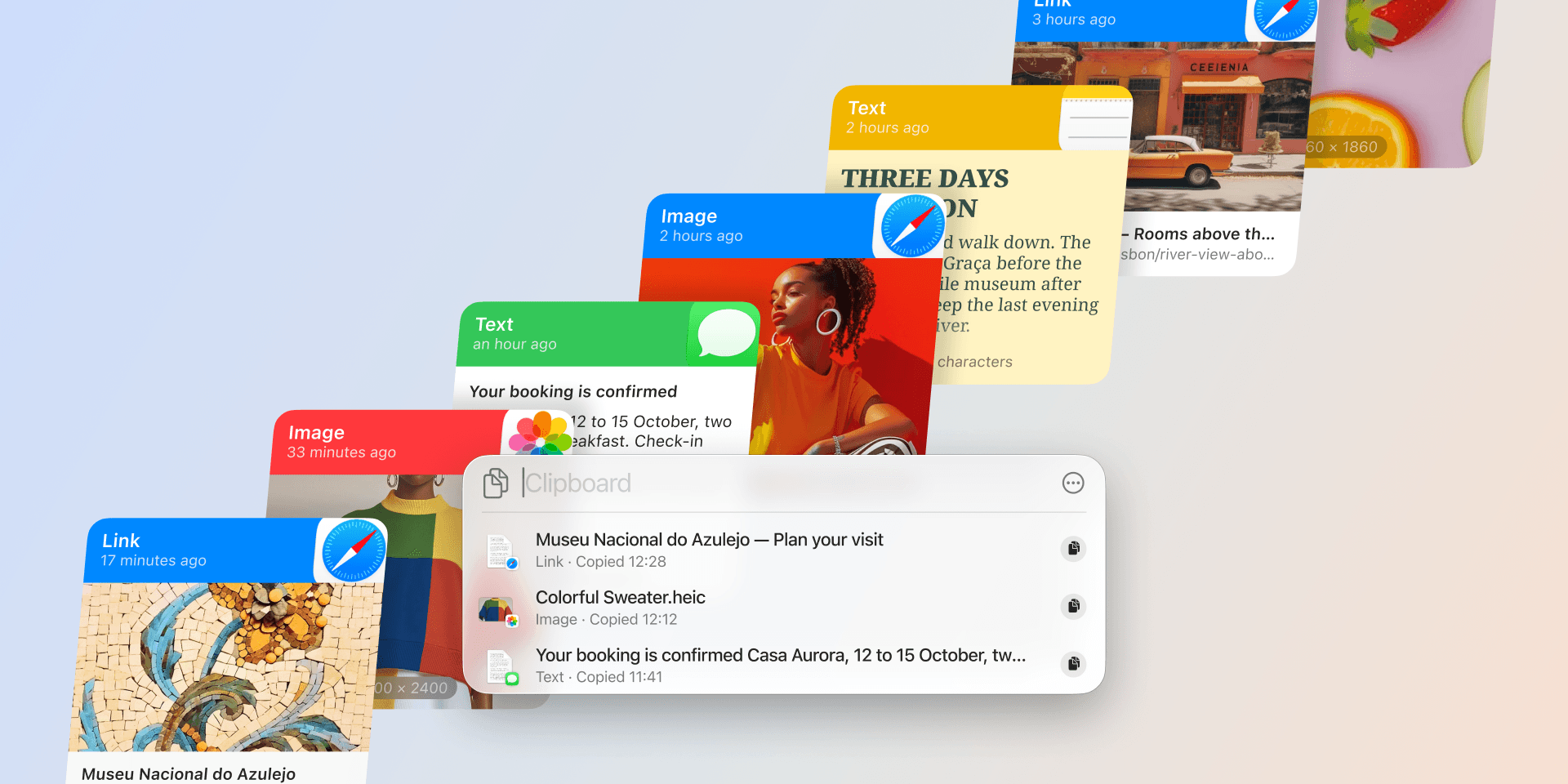
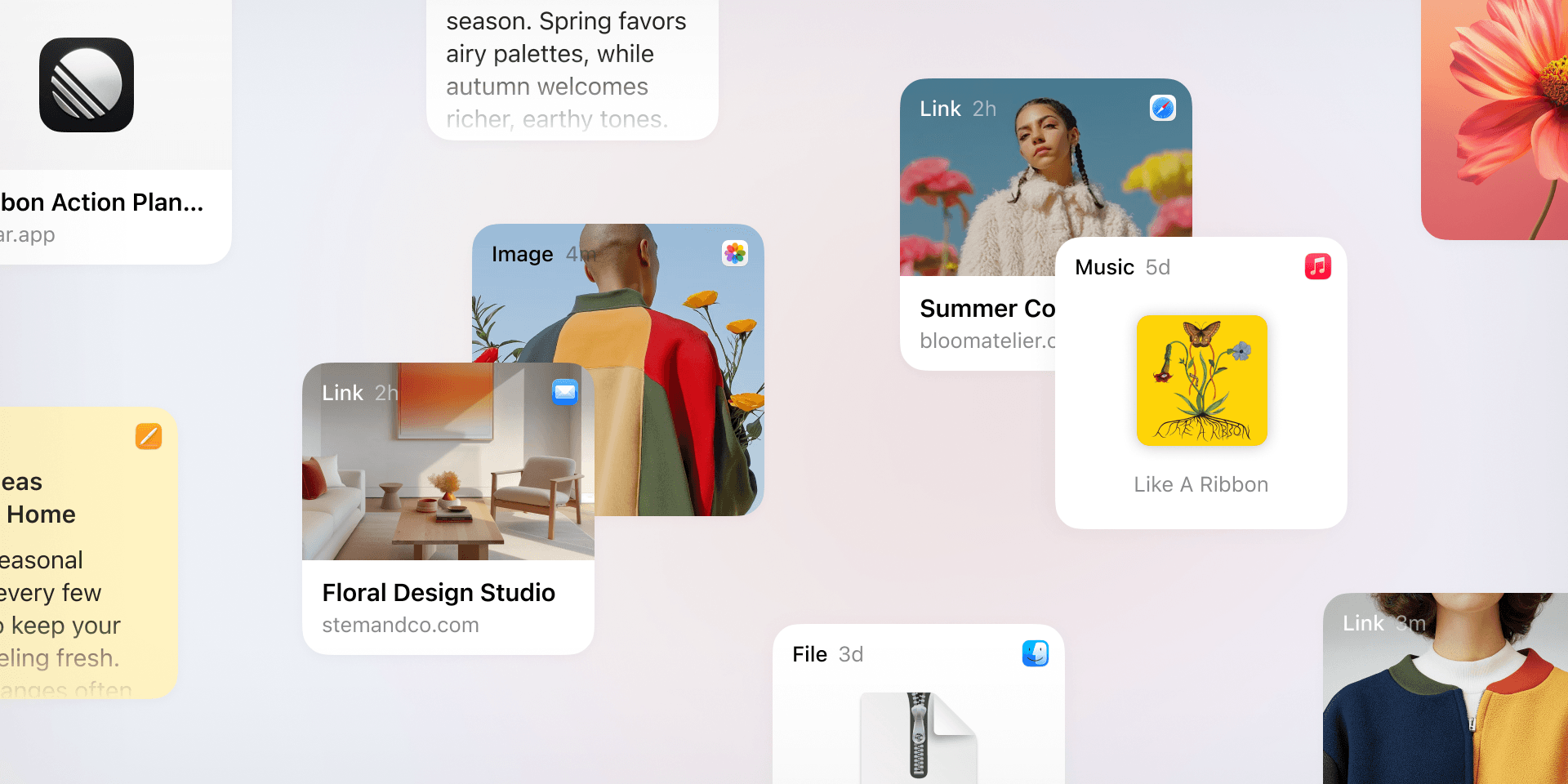
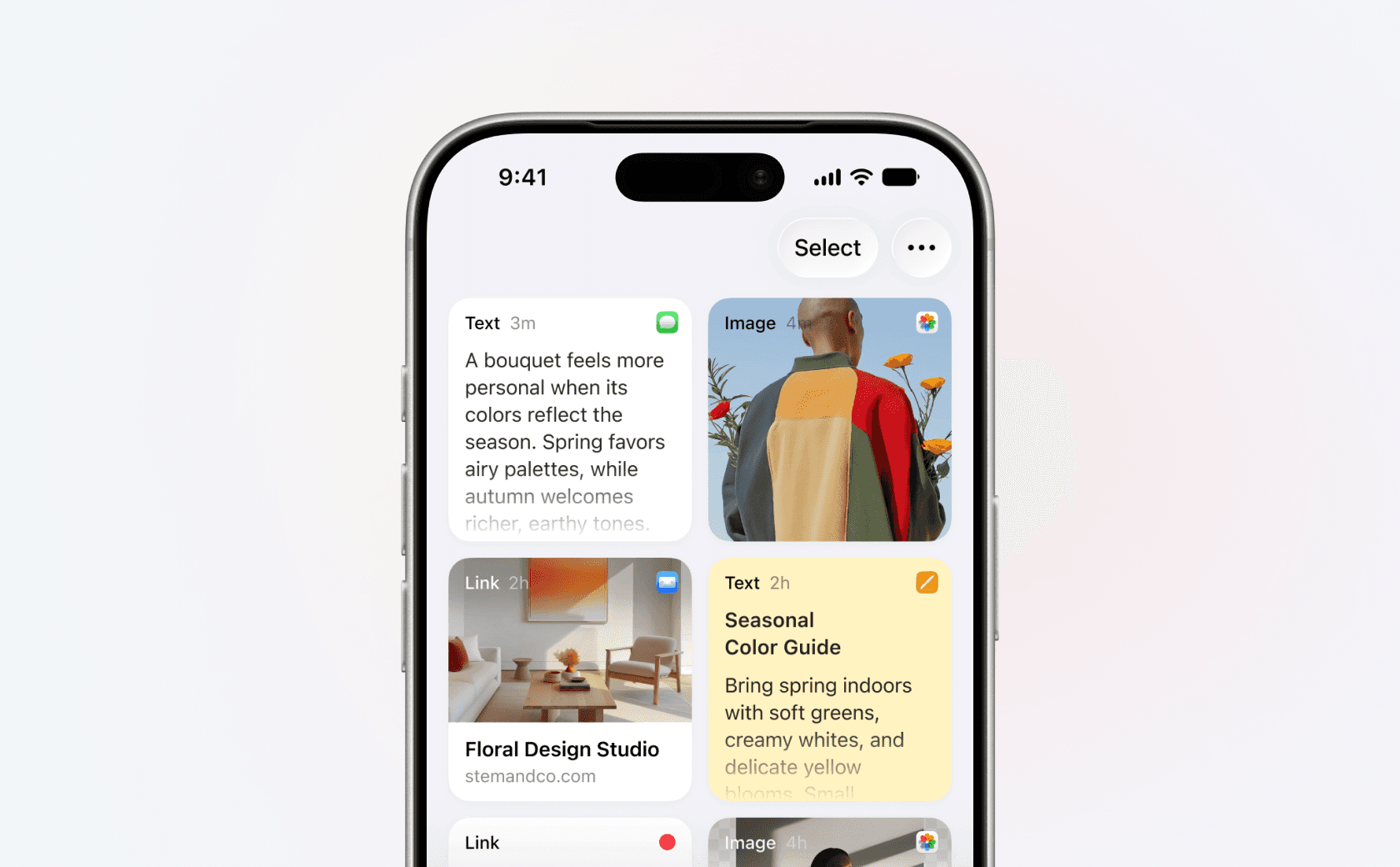
Paste is a clipboard manager for iPhone, iPad, and Mac. It keeps the things you copy in a history you can scroll, search, and reuse, instead of losing all but the last one. Open it and your copies appear as a list, newest first. Tap any item to put it back on the clipboard and paste it into any app.
Capture each copy, not just the last one
Because of how iOS handles the clipboard, an app can't silently record every copy in the background the way the Mac app does. Paste works within that with a few quick ways to capture:
- Open Paste after copying, and it adds the current clipboard item to your history.
- Use the Copy to Clipboard History action in the share sheet from any app to send content straight to Paste.
- Copy through the Paste Keyboard, which captures as you go without leaving the app you're in.
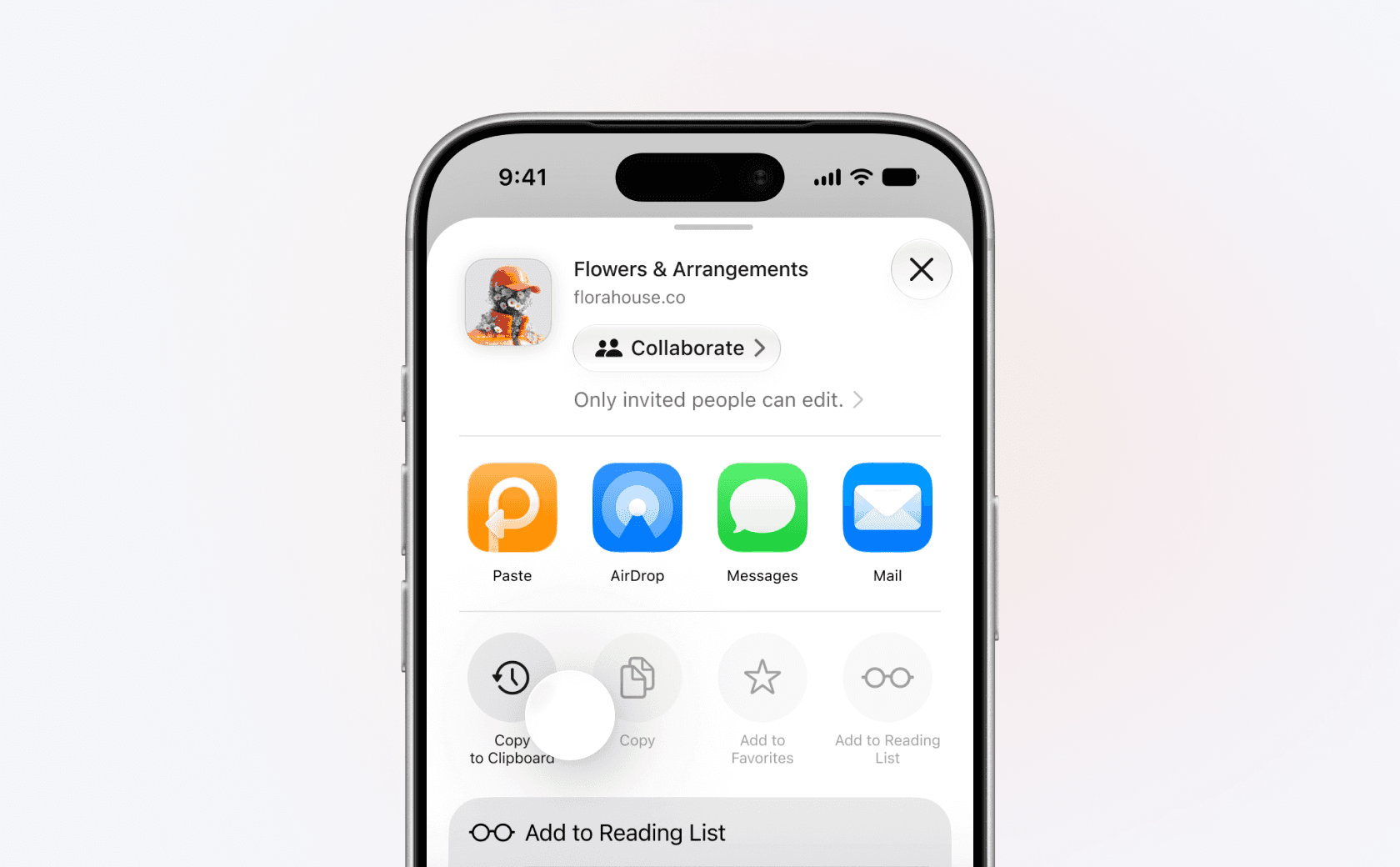
The share extensions and the Paste Keyboard are the routes to set up first, since they let you collect items without opening the app each time. The full walkthrough is in Clipboard history on iPhone.
Search a week of copies in seconds
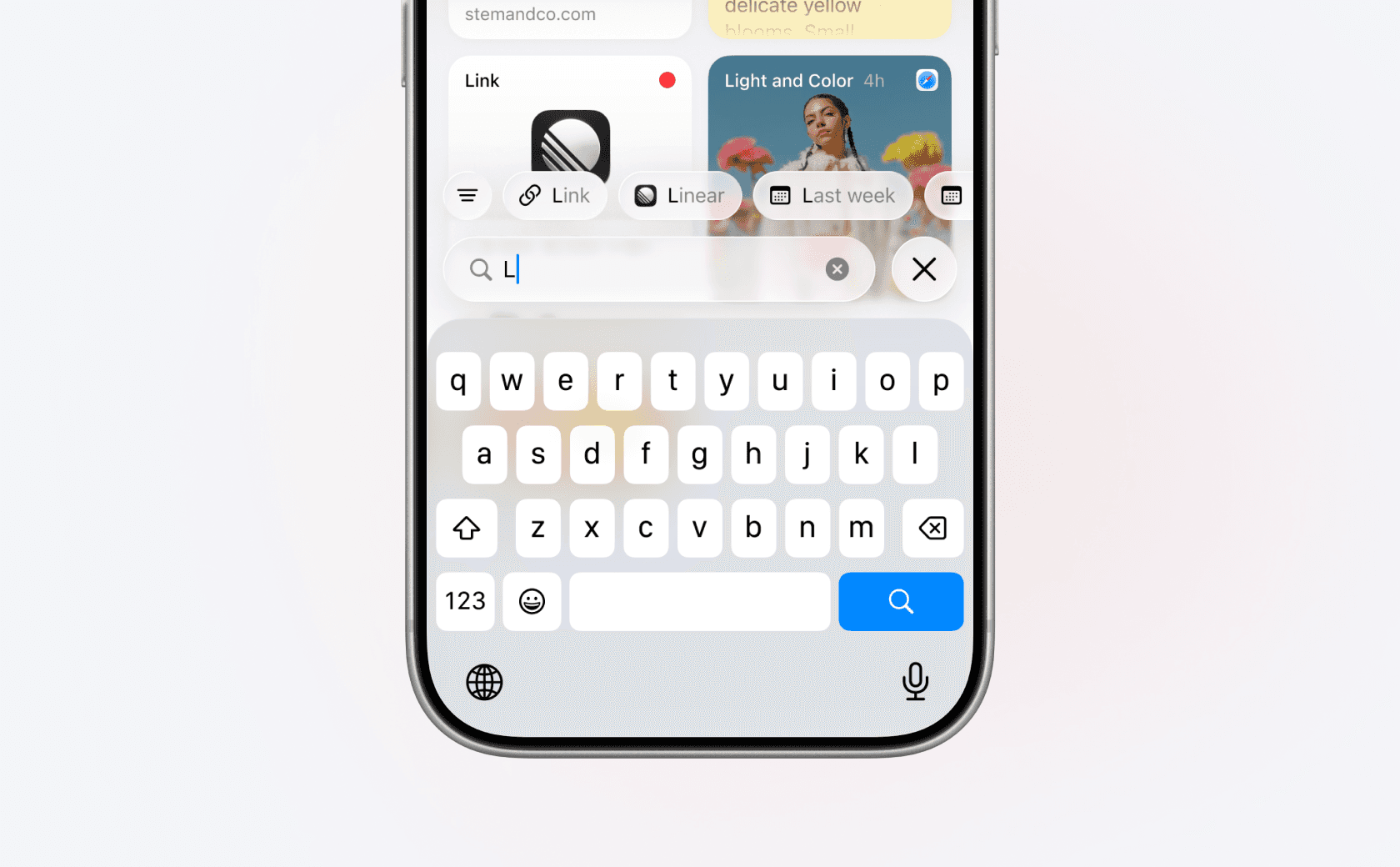
Once your history fills up, finding the right item matters more than scrolling. Tap the search icon and type. Paste searches titles, content, and metadata, and it reads text inside images, so you can find a line from a screenshot you copied last Tuesday. Filters narrow results by content type, source app, and date.
Pin the things you reuse
Your history is a stream, but some things you want to keep on hand: an email signature, a shipping address, a block of code, a link you send constantly. Pin those to a pinboard and they stay put instead of scrolling away with the rest of your history.
See copies from your Mac on your iPhone
If you use a Mac too, turn on iCloud sync and the things you copy on your Mac show up in your iPhone history, and the other way around. It syncs through your own private iCloud, so your clipboard stays in your account rather than on anyone's servers. Set it up in Paste Settings → General → iCloud sync on each device. The Mac app captures every copy automatically, so syncing is the easiest way to keep a full history flowing to your phone. Paste for Mac handles the heavy lifting; your iPhone is where you reach for it on the go.
Why iPhone keeps one copy at a time
This comes down to privacy. iOS doesn't let apps read the clipboard while they're running in the background, so no app can quietly log everything you copy. When an app does read the clipboard, iOS often shows a banner telling you, which is why you may see a "Paste pasted from…" notice the first time. That restriction is also why a clipboard manager on iPhone needs the share sheet, the keyboard, or a quick open to capture, rather than running invisibly. It's a fair trade: you get a history, and the system still tells you when something reads your clipboard.
iPad is a little different. There, Paste can capture automatically as long as it's visible on screen, so keeping it open side by side with your other app, in Stage Manager, or in Slide Over lets it collect copies without you switching to it. See Paste on iPad for the details.
The honest takeaway
iPhone is built to hold one copy at a time, and the iOS 27 paste button makes that copy quicker to reach rather than turning it into a history. If you regularly copy more than one thing and want any of it back, you need an app that keeps the history for you. Paste does that, makes it searchable, and keeps it in sync with your Mac and iPad through your private iCloud.
Get Paste for iPhone to start keeping your copies, or download Paste for Mac and let the two work together across your devices.