Alfred and Raycast clipboard history: what it keeps
You installed a launcher to open apps without reaching for the Dock, and at some point you found out it also remembers what you copied. It is a good surprise: the window already bound to a keystroke turns out to be holding last week's tracking number too.
The practical questions come next. What does it save, how long does it keep it, and does any of it reach the iPhone in your pocket? Alfred and Raycast both have clear answers, and both answers have a limit you meet eventually: one is about how long a copy lasts, the other about how far it travels. Those two limits are what Paste, our clipboard manager, is built around.
Here is what each launcher does.
Alfred saves text, images, and files
Clipboard History in Alfred is part of the paid Powerpack, and it is off by default for privacy reasons. You turn it on in Alfred's preferences under Features, Clipboard, tick the types you want kept, and give Alfred Accessibility permission in macOS.
Once it is on, it saves text, images, and file links. Your hotkey opens the Clipboard History viewer, and typing any word from a clip filters the list down to it. Alfred adds three more things worth knowing:
- Cmd + S saves the highlighted clip as a snippet. Snippets are permanent and can expand as you type, so the clip no longer expires with the history.
- Merging, once turned on in preferences, adds what you copy to the previous clip instead of replacing it. Hold Cmd and tap C twice. It is useful for collecting several paragraphs into one paste.
- Typing clear into Alfred's search box erases the last 5 minutes, the last 15 minutes, or the whole history. Fn + Delete removes a single item.
Alfred also decides on its own what not to keep. By default it ignores password apps such as Keychain Access and 1Password, along with anything an app marks as concealed. You can drag more apps into an Ignore Apps box. A maximum clip size setting keeps very large copies of text out of the history.
Raycast catches more than text
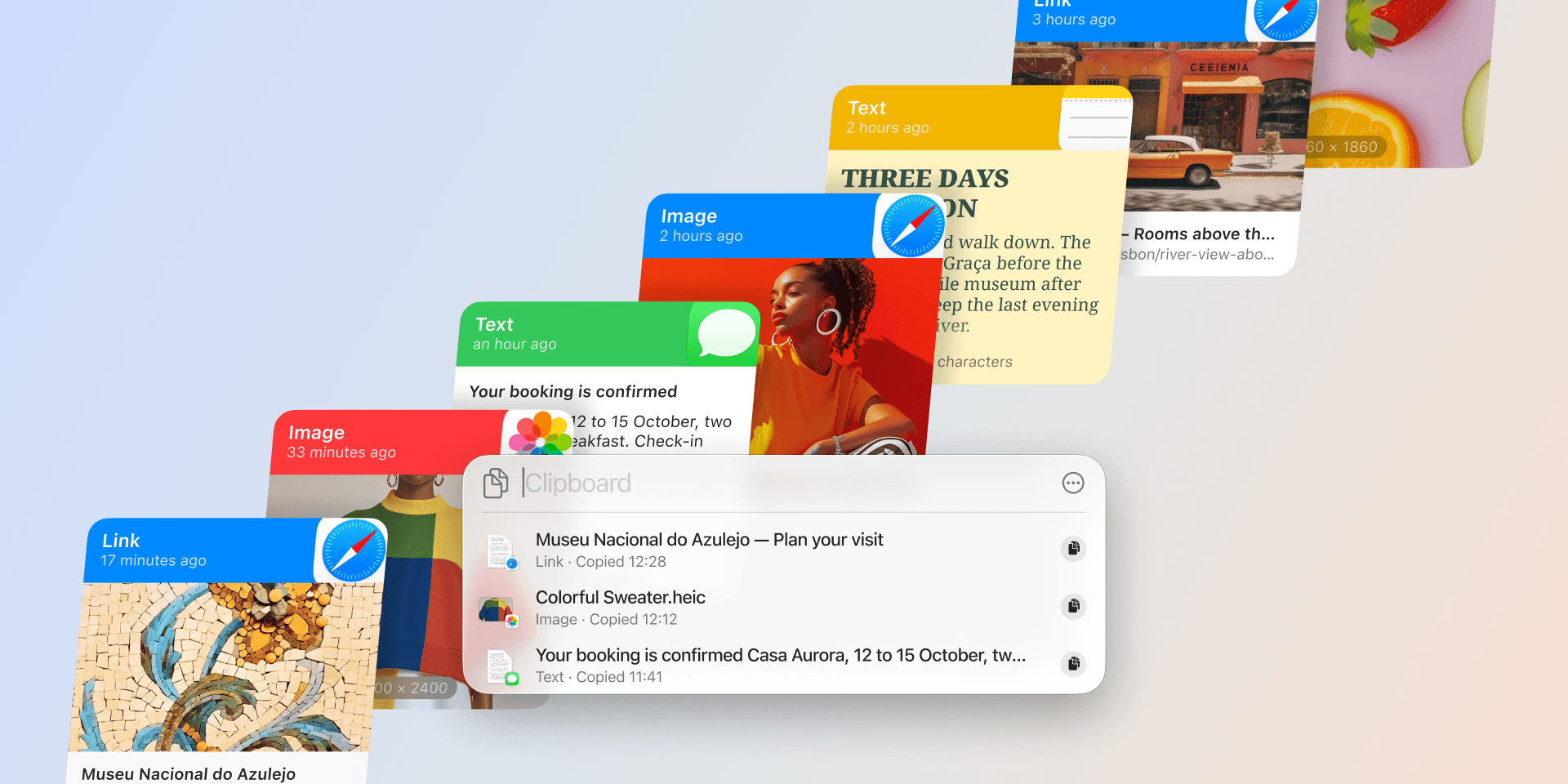
Raycast casts a wider net. Its Clipboard History keeps text, images, files, links, emails, and even colors. You open it with the Clipboard History command, or give it an alias or hotkey in settings.
Two things it does are unusual for a launcher:
- Text Recognition pulls the words out of images you copy, so a screenshot of an error message is searchable next to your typed clips. You choose between a fast mode and a more accurate one.
- Every original format is kept. Raycast keeps every format the source app provided, such as plain text, rich text, and HTML, and Paste as… switches between them when you paste. A setting makes plain text the default for every paste.
Beyond that, you can filter the list by type with ⌘P, pin an entry, rename it, save it as a Raycast snippet, or use Paste Sequentially to fill in a form one field at a time. Like Alfred, Raycast has a Disabled Applications list for apps it never records, and Passwords and Keychain Access are on it from the start.
How long your history lasts
Both launchers let you choose how long a clip stays in the history. The options differ in where they stop:
- Alfred: 24 hours, 7 days, 1 month, or 3 months. Three months is the longest.
- Raycast: 1 day, 1 week, 1 month, or 3 months on the free plan. Raycast Pro adds 6 months, 1 year, and Unlimited.
On Raycast, the longer options don't turn on by themselves when you subscribe. You pick one in Settings, under Clipboard History, Keep history for.
So for every Alfred user, and for anyone on Raycast's free plan, three months is the limit. That suits the way most people use a clipboard: reaching back a few minutes or a few days. It gets awkward for the rest: the license key you pasted once last spring, the address you send twice a year, the account number from a form you filled in during the summer. Those are exactly the items that fall outside three months, and they are the ones you would not think to save on purpose.
Both apps give you a way around it. Alfred's snippets and Raycast's pinned entries stay whatever the retention setting. But you have to know, at the moment you copy something, that you will want it later.
It never leaves the Mac you copied on
Neither launcher's clipboard history leaves the Mac it was saved on.
Alfred can sync its settings between your Macs through Dropbox, iCloud Drive, Google Drive, or OneDrive, so your workflows and snippets follow you. Clipboard history is on Alfred's list of things it does not sync, so a second Mac starts with an empty list.
Raycast's Cloud Sync, a Pro feature still marked as beta, keeps your snippets, notes, quicklinks, AI chats, and themes the same on every device you sign in to. Clipboard History is the first item on its "Not Synced" list.
Your iPhone doesn't get it either. Raycast for iOS brings Raycast AI, Dictation, Notes, Snippets, Quicklinks, and Calculator to iPhone and iPad, but not clipboard history. Alfred's iPhone app, Alfred Remote, is a remote control for your Mac: it runs actions there, and when it pastes, the text lands in the app open on your Mac.
One thing does travel toward the Mac. Apple's Universal Clipboard can bring something you copy on your iPhone to your Mac, and Raycast can save it to the Mac's history. The history itself stays on the Mac.
Most Mac clipboard managers work this way. It is worth knowing before you decide the launcher has the job covered, because a clipboard that travels changes what you use it for: you copy a booking reference on the laptop and show it from your phone at the door.
All three, side by side
The short comparison, with Paste added for the two limits above:
| App | What it keeps | How long | On iPhone and iPad |
|---|---|---|---|
| Alfred | Text, images, file links | Up to 3 months | No |
| Raycast | Text, images, files, links, emails, colors | Up to 3 months; 6 months, 1 year, or unlimited with Pro | No |
| Paste | Text, links, images, files, colors | Your choice, from a day to forever | Yes, synced through your private iCloud |
Features here are accurate to the best of our knowledge as of November 2026. Apps change, so check each app's own site before you decide.
Paste: as long as you like, on all your devices
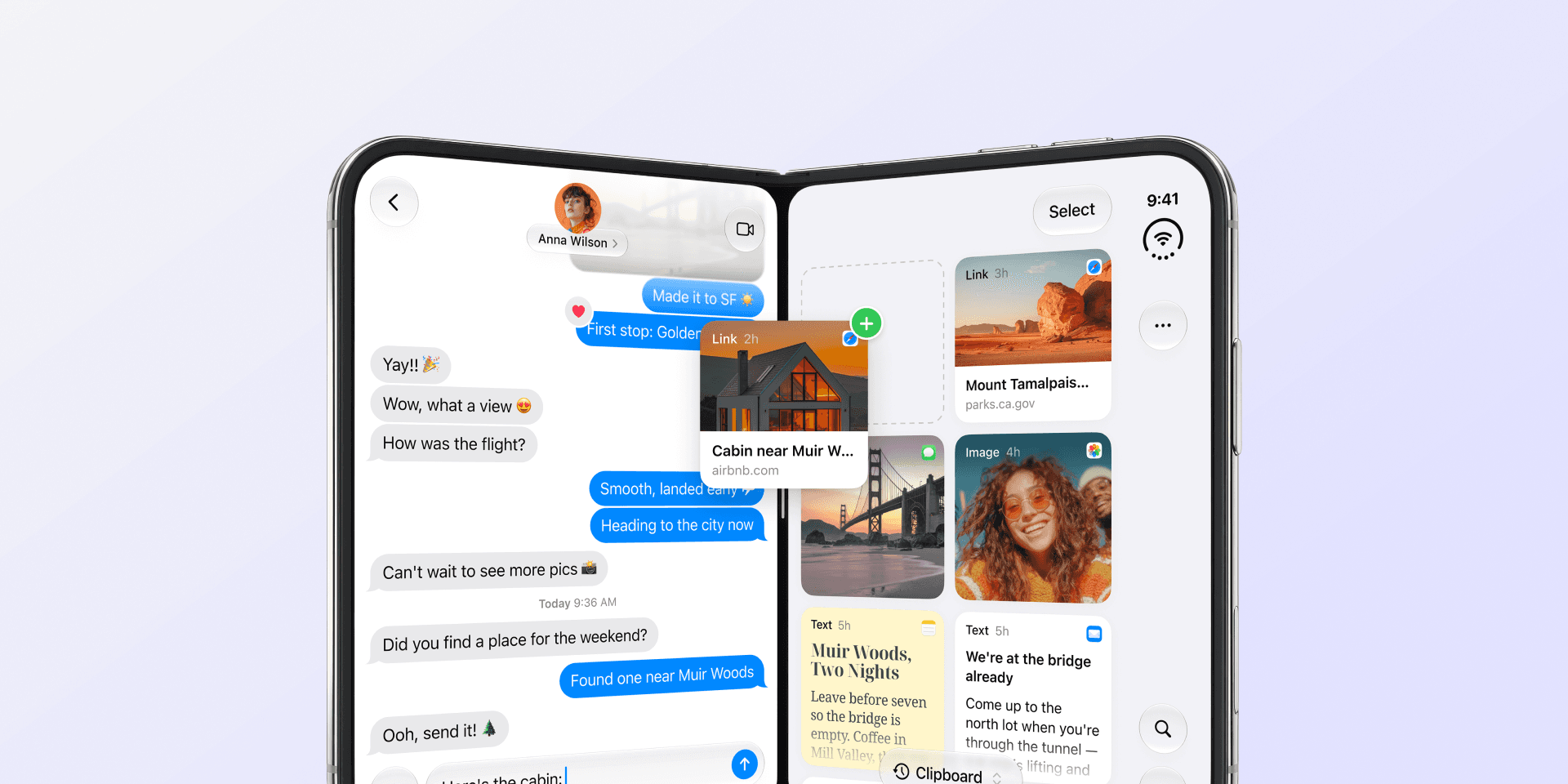
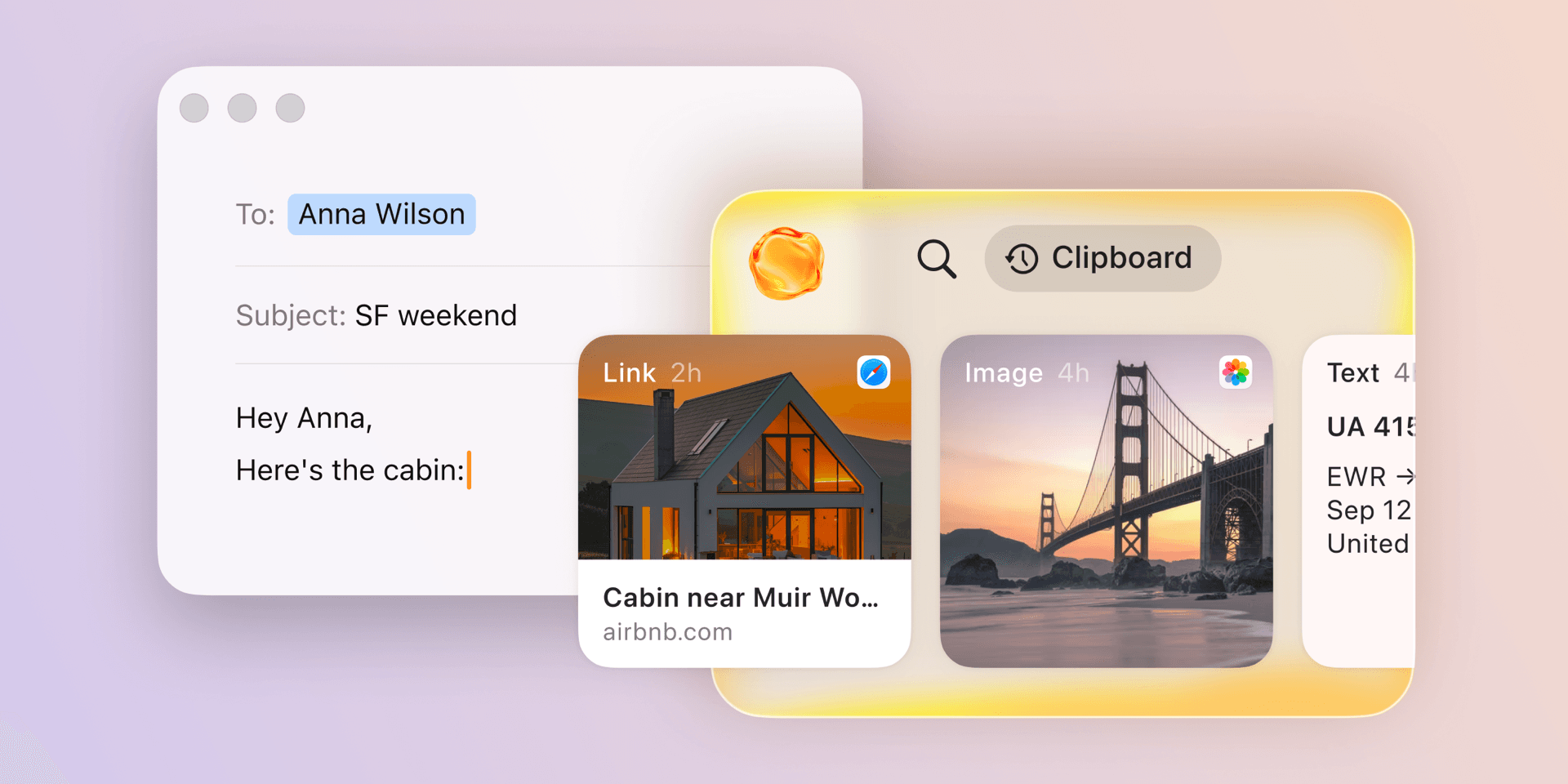
Paste starts where both launchers stop. Your history syncs across your Mac, iPhone, and iPad through your own private iCloud, never our servers, so the link you copied on the laptop an hour ago is already on your phone. You also decide how long it stays. Keep History in Paste's settings on Mac goes from a day to forever, so the clip you didn't know you would need is still there next year.
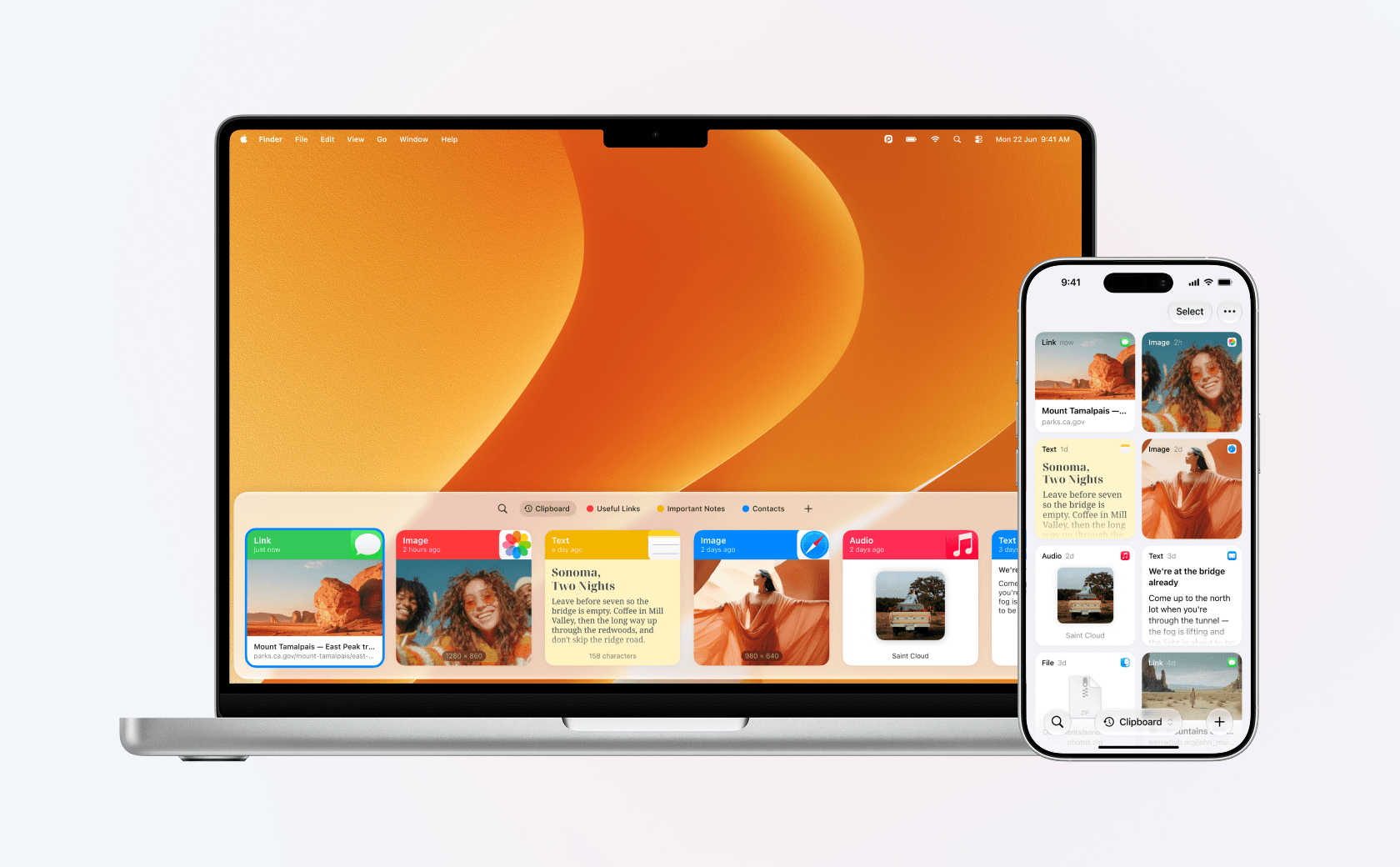
On the iPhone, the history is there to use, not only to look at. The Paste Keyboard opens it inside any app, so you paste a booking reference into a form on your phone the same way you would on the Mac.
The history also does more once it is there:
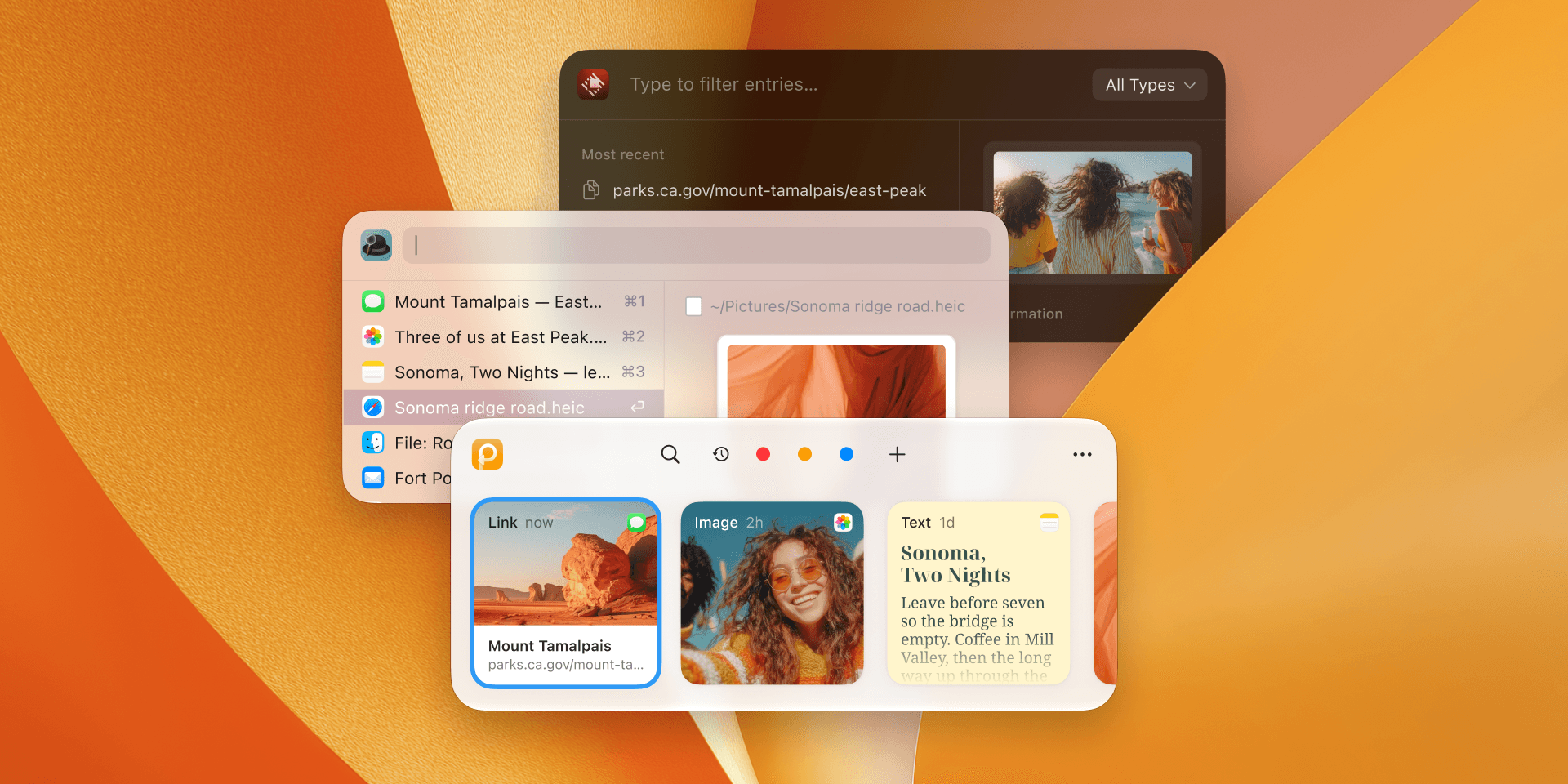
- Pinboards keep the things you reuse, like addresses, standard replies, or brand colors, in named collections. They never expire, and they sync to every device with the rest of your history.
- Shared pinboards let your team or family use the same collection through iCloud, so everyone pastes the same up-to-date links and text.
- Power Search finds anything you copied, including text inside images, with filters for type, app, date, and the device you copied on.
- Intelligent Clipboard suggests items that fit the app you are pasting into, on Macs with Apple Intelligence.
Like both launchers, Paste skips passwords and content that apps mark as temporary, and you can exclude any app in its privacy settings.
If your launcher's history has been enough so far, keep using it. It is already on the keystroke you know. If what you needed turned out to be four months old, or on your phone instead of your Mac, that is what Paste is built for. It is free for a week on all your devices: try Paste free.