Paste Stack: same moves, new shape
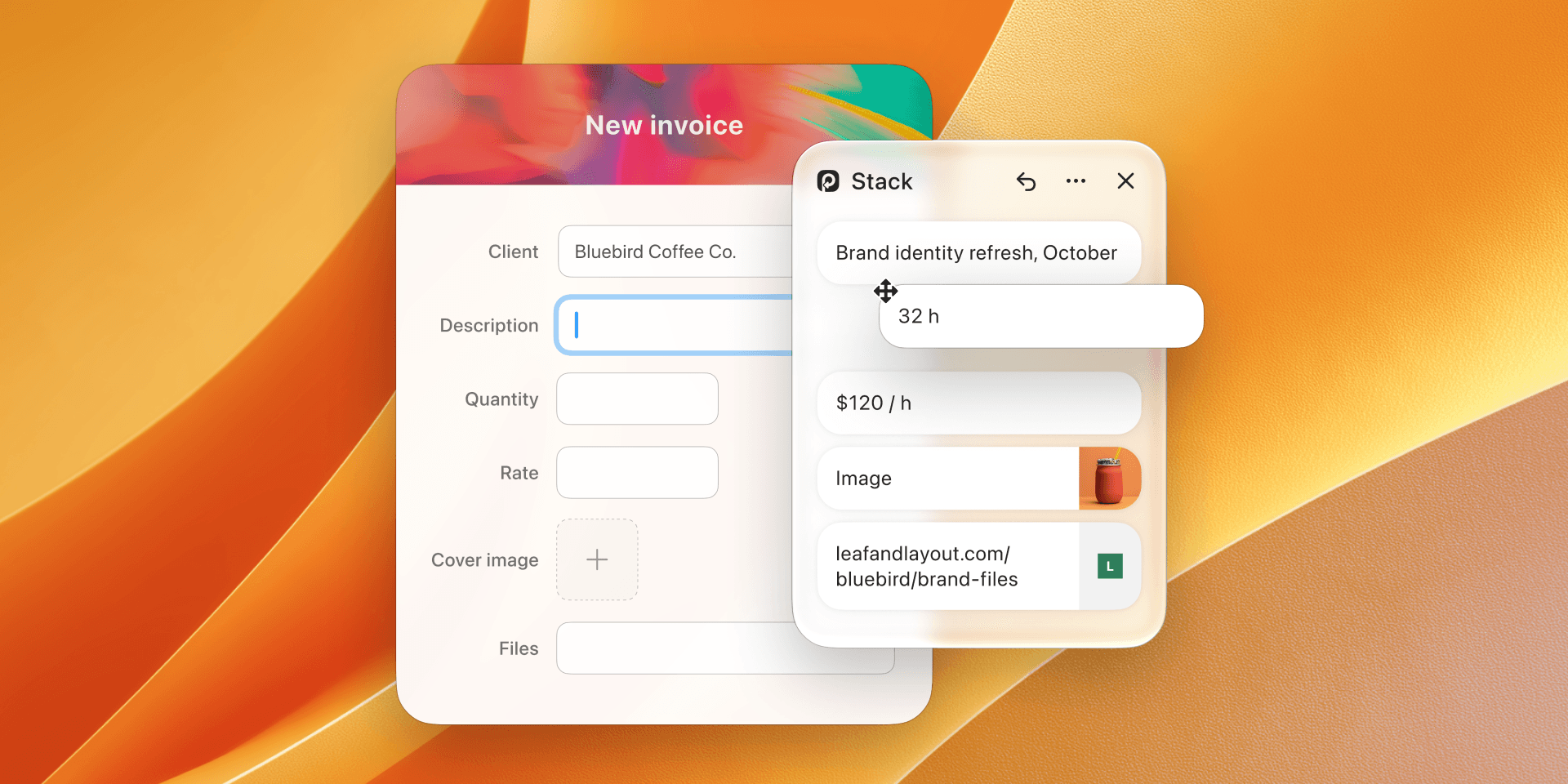
Some work asks for the same few things every time, in a fixed order. An invoice wants the scope from the proposal, the hours from the time tracker and your rate. Each field is a trip to another app and back.
Paste Stack has saved those trips for years: press ⇧⌘C, copy what you need, and ⌘V pastes it back one item at a time. This update keeps every one of those moves and builds a new experience around them, with more ways to fill Paste Stack, set its order and take a step back.

A new shape
Paste Stack is now glass, like the rest of Paste. Rows show formatted text, links and image thumbnails, so you can tell items apart at a glance. It grows with what you add, scrolls when the list gets long, and stays on top wherever you park it.
It no longer has to begin with a fresh round of copying, either. In Paste, select the items you need, then press ⇧⌘C, or right-click and choose Create Stack. Paste Stack opens with them in the order they appear in Paste, and while it is open, selecting more and pressing ⇧⌘C again adds them. Every copy you make still lands there, as it always has, and you can drop something from another app straight in.
Put it in order, then paste your way
Drag a row up or down, and the paste order follows. ⌘V always pastes the top row. To flip the whole order, choose Reverse Order in the "…" menu, and when one item is needed out of turn, double-click it.
Sometimes the order does not matter and you want everything at once. Paste All (⌃⌥⌘V) puts every text item into your document in one go, one per line, in the stack's order. And when the formatting of the source would get in the way, turn on Paste as Plain Text, and everything you paste from the stack arrives clean.
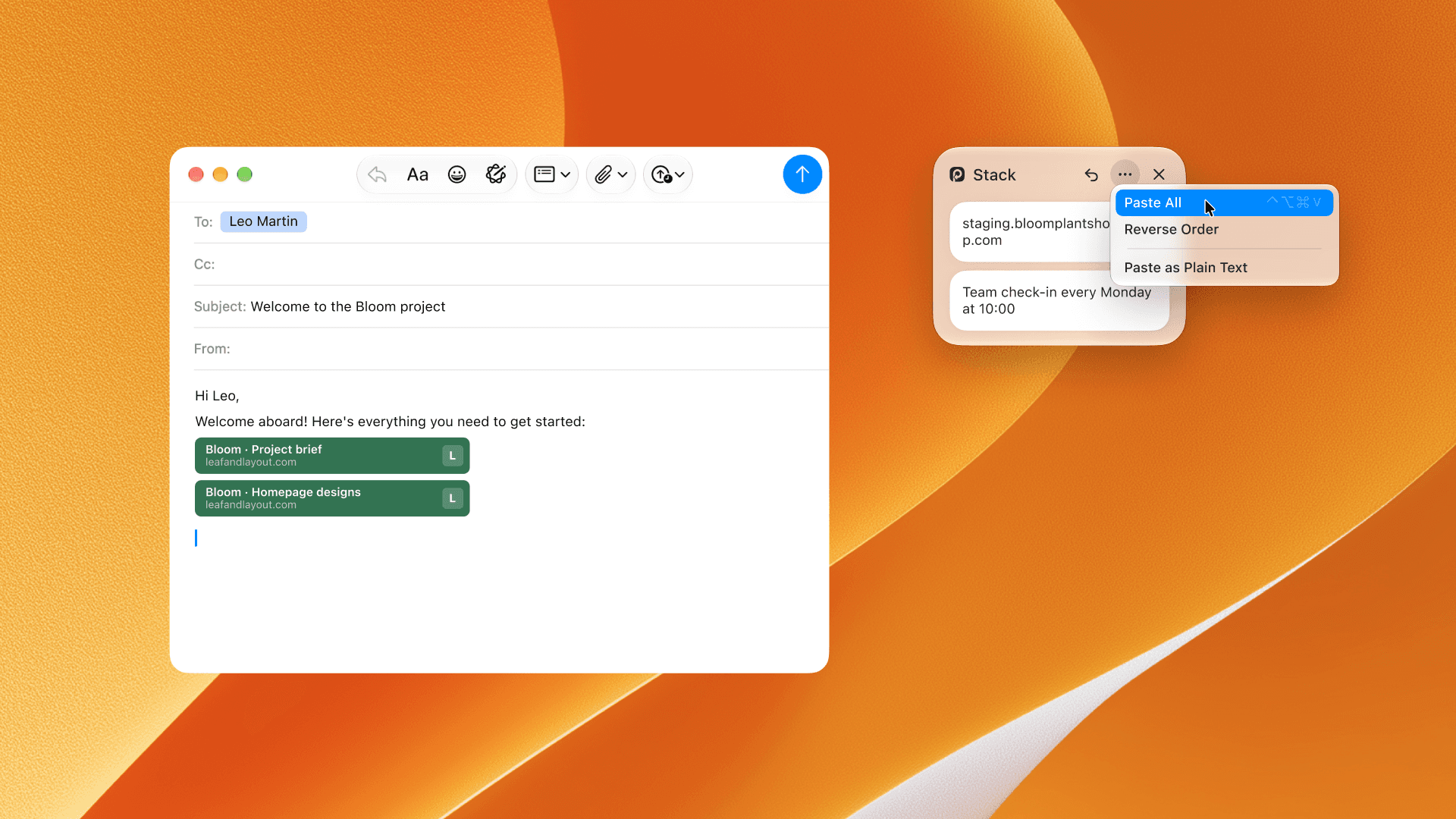
There is room for second thoughts. Remove a row with ×, paste one before its turn, or drag a card straight into another app, and Undo in the header returns it to its place in Paste Stack.
With Paste MCP, your AI tool can work with Paste Stack too. Ask Claude, Codex or Cursor to find the items you copied for a task and add them, and Paste Stack opens with them, ready for ⌘V.
Made for forms and handoffs
The quickest way to see what changes is to look at where the trips used to be. Every stack looks different, but the move is the same: gather what the form or the handoff needs, put it in order, and paste your way through.
- Billing a client. The scope line from the proposal, the hours from the time tracker and the rate go into Paste Stack. One drag puts the hours in second place to match the invoice, and three presses of ⌘V fill the line.
- Adding a company to the CRM after a call. The role, the next step and a note from the meeting are already in Paste. Select them, choose Create Stack, and fill the record field by field without leaving it.
- Listing a new product. The description from a document, the size from a spreadsheet and the photo from Photos line up, and the product page fills in the order the form asks for them.
- Turning a meeting into a task. The owner and the description come from the call notes, the due date from the team calendar. With Paste as Plain Text on, the notes land in the tracker without the styling they came with.
However you work, Paste Stack pastes what you copied in the order your work asks for it.
Ready to try it yourself? Download the latest version of Paste on the App Store.