Paste MCP: Turn clipboard history into context for AI tools
AI tools are most useful when they understand what you are working on. But the context they need is often scattered across your day: links from Safari, notes from meetings, screenshots from design reviews, snippets from documents, and ideas copied between apps.
Paste MCP brings that context into AI tools like Claude, Codex, and Cursor through a built-in local MCP server on your Mac. You can ask your AI tool to find something you copied earlier, use saved context, or create a pinboard without leaving the tool you are in.
What is Paste MCP?
Paste MCP is a new way to use Paste with AI tools. It connects your clipboard history to supported AI tools through MCP, an open standard for connecting apps and context to AI workflows.
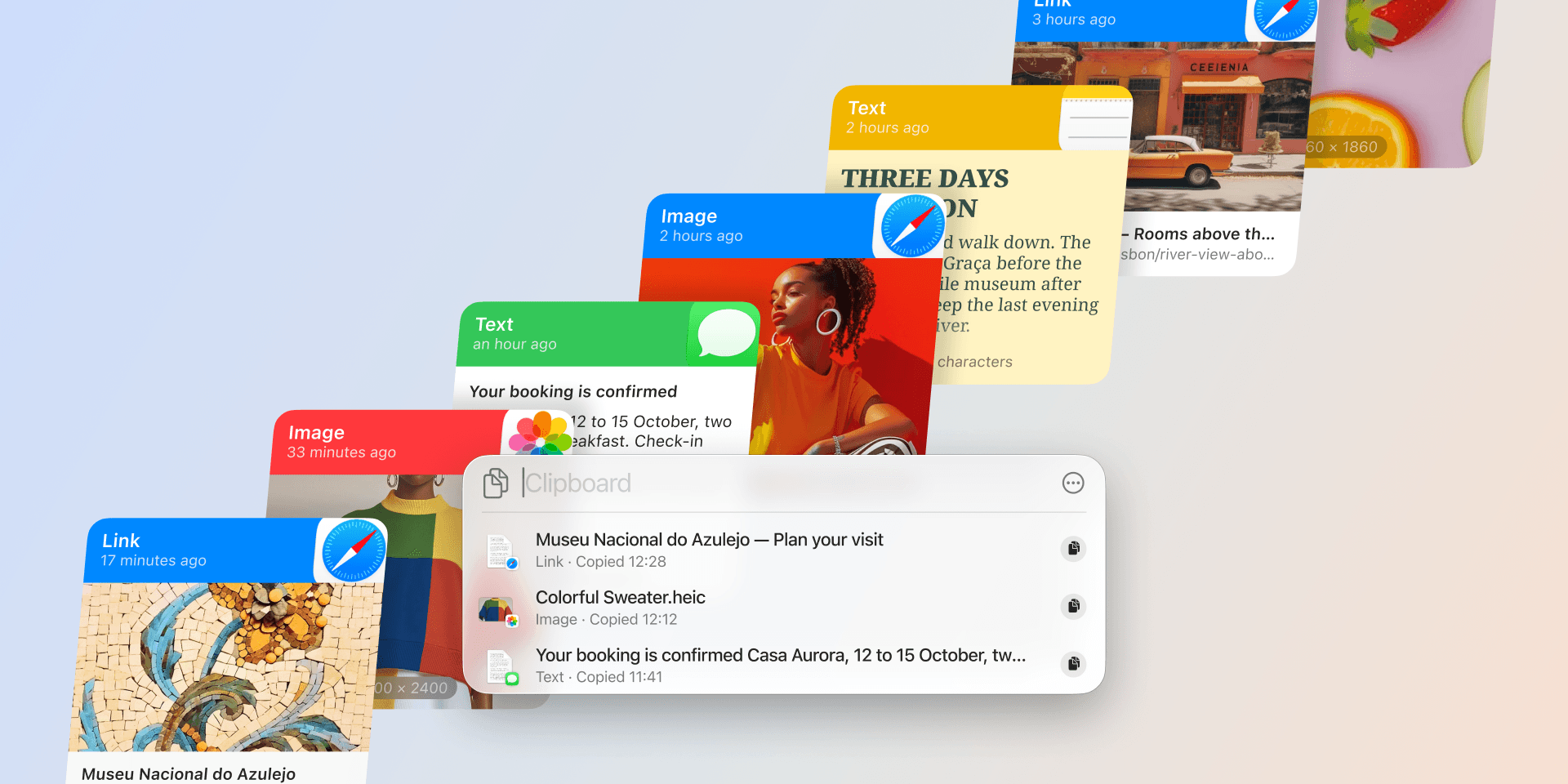
Once connected, your AI tool can work with the items you already saved in Paste. That could be a link you copied last week, notes from a meeting, screenshots from a design review, a file path, a code snippet, or a set of references you collected while working.
Paste stays the place where your clipboard history lives. Paste MCP simply makes that history available when your AI tool needs context.
From saved context to useful work
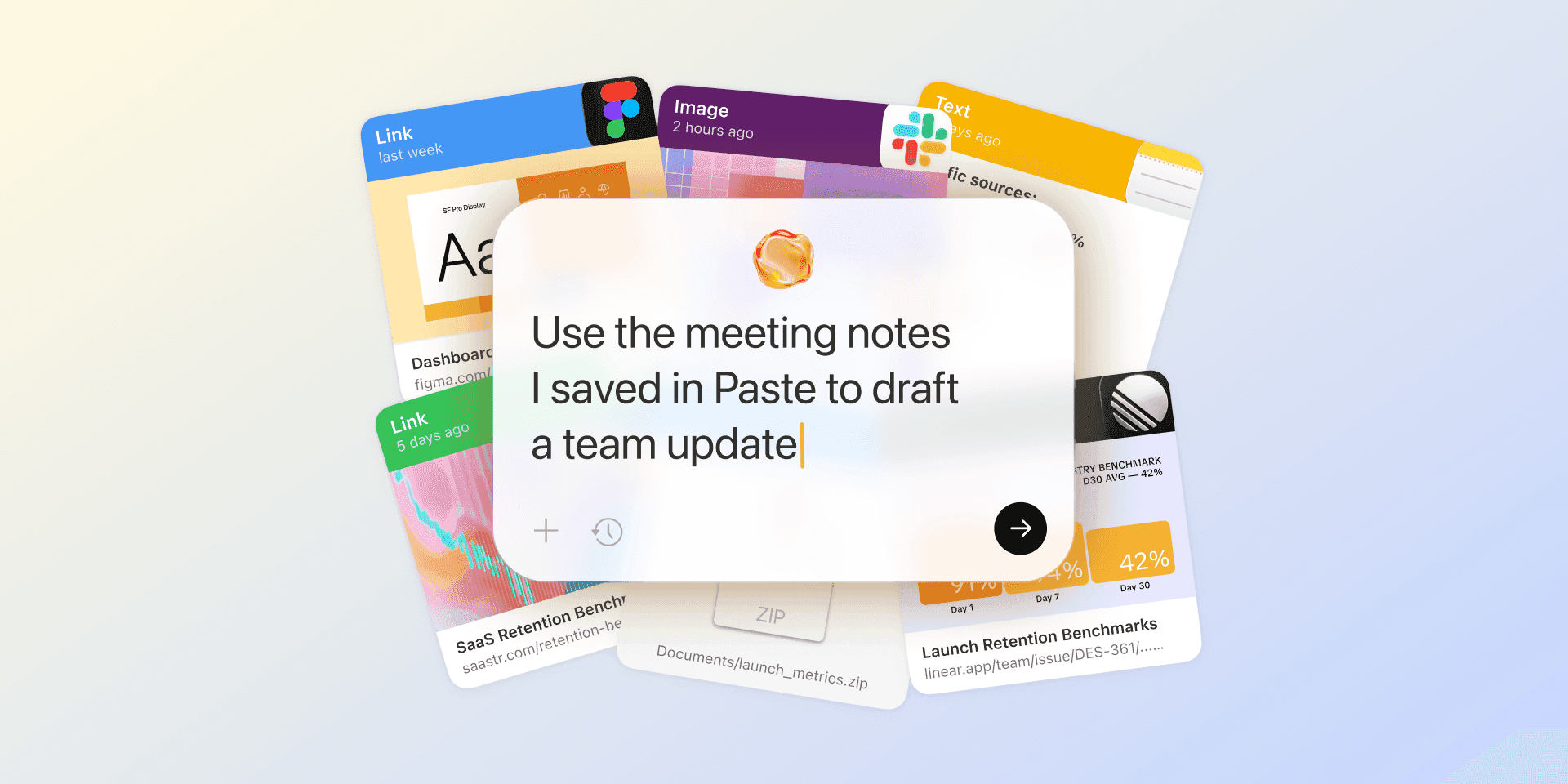
The things you copy are often more useful than they look at first. A meeting note can become a team update. A saved link can shape research for a new page. A screenshot can help explain a design decision. A few snippets can become the start of a draft.
Paste MCP helps your AI tool work with those items directly from Paste. Instead of collecting context before every prompt, you can ask your AI tool to look through your clipboard history, find the right items, and use them in the task you are working on.
You can start with something simple:
-
Check Paste for the meeting notes I copied earlier and turn them into a team update.
-
Find the links I saved about retention and summarize the useful points.
-
Look through Paste for the references I saved last week and draft a first version of this page.
-
Create a pinboard for this project and add the relevant items.
It works for both finding and organizing. If you copied a link last week and cannot remember the title, ask your AI tool to find it. If you collected notes, screenshots, and files for a project, ask it to create a pinboard and keep everything together.
Paste remembers what you copied. AI helps you use it.
Getting started with Paste MCP
To start using Paste MCP, make sure you have the latest version of Paste installed on your Mac. Then open Paste settings and turn on Paste MCP.
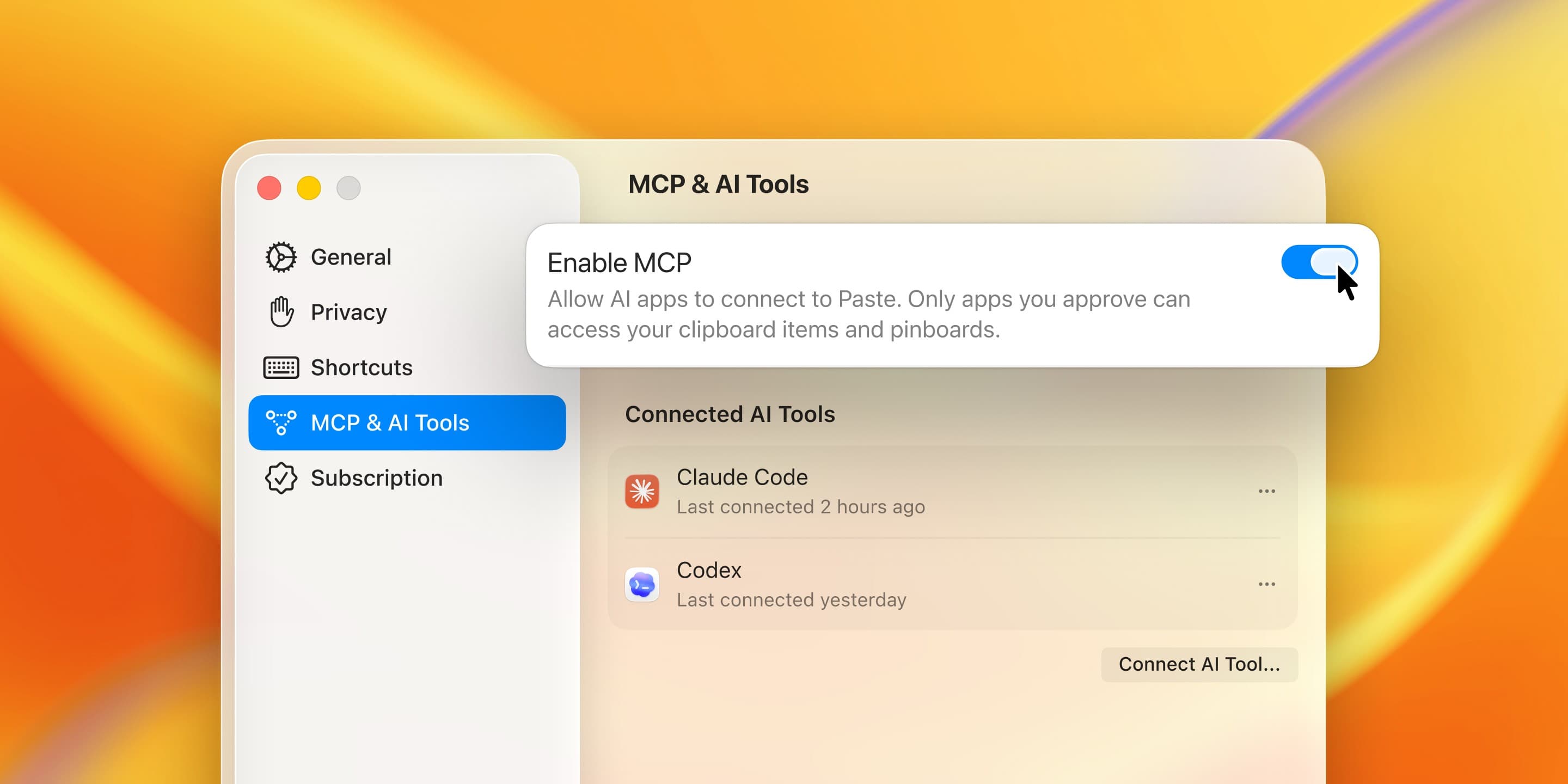
After that, connect Paste from the MCP or connector settings in the AI tool you want to use. Paste works with AI tools like Claude, Codex, and Cursor, and each tool may have a slightly different setup flow. If you need help with a specific tool, follow one of our setup guides:
Once Paste is connected, begin with a small request to make sure everything works as expected.
Try: “Can you check Paste for the last link I copied?” Then ask your AI tool to use that context: “Turn it into a short summary.”
From there, you can try broader requests:
-
“Find the meeting notes I copied today and turn them into a team update.”
-
“Look through Paste for everything I copied about this project and summarize the main points.”
-
“Create a pinboard for this project and add the relevant items.”
The clearer your request, the easier it is for your AI tool to find the right context in Paste. Start with what you want it to look for, then say what you want to do with it.
Built around your Mac
Paste MCP runs through a built-in local MCP server on your Mac. Paste integrates locally with supported AI tools, with local authentication built directly into the app.
Your clipboard history stays under your control. You choose which tools can connect and when to remove access.
MCP gives AI tools a standard way to connect with apps and context. Paste uses it to make your clipboard history available to the tools you approve. AI model requests may still depend on the tool or provider you use, so it is worth reviewing the privacy settings of each connected AI tool as well.
Getting the best out of Paste MCP
AI tools usually perform best when you give them a little direction. With Paste MCP, that direction can be simple: what to look for, where it might be in your clipboard history, and what you want to do with it next. Here are a few tips that can help your AI tool find the right context faster.
-
Set a timeframe: If you remember when you copied something, include it in your request. For example, “Find the notes I copied two hours ago.” “Look for the links I saved last week about onboarding.”
-
Clarify the type of item: Paste can store text, links, images, files, and snippets. If you know what kind of item you are looking for, say it. For example, “Find the screenshot I copied from the design review.” “Look for the code snippet I copied from GitHub.”
-
Say what you want to do next: Once your AI tool finds the right context, tell it how to use it. For example, “Turn those notes into a short team update.” “Use those links to draft the first version of this page.”
-
Ask it to organize Paste: Paste MCP can help you keep useful context together, not just find it. For example, “Create a pinboard for the launch project and add the relevant items.” “Save these references in a new pinboard for later.”
Links, notes, screenshots, snippets, and ideas can all become useful context later. Copy naturally as you work, then ask your AI tool to look through Paste when you are ready to write, plan, summarize, or build.
Paste MCP brings clipboard history into the AI tools you already use. It helps you find what you copied, use saved context, and organize Paste from the same place you are working. It gives the context you collect every day a more useful place in your workflow.
Update Paste on Mac to try Paste MCP.