Organize with Pinboards
Pinboards are where Paste turns from a simple clipboard history into something you can organize and reuse over time.
Instead of keeping everything in one long list, pinboards let you group items by topic, project, or purpose. You decide what belongs together, and Paste keeps it easy to access whenever you need it, across all your devices.
What is a Pinboard?
A pinboard is a collection of items you want to keep around.
You can add text snippets, links, images, code, or any other copied content to a pinboard and come back to it later. Unlike your regular clipboard history, pinboards don’t expire or disappear. They’re designed for content you want to keep and reuse.
Common examples include:
Reusable text snippets and templates
Code snippets, commands, and terminal shortcuts
Design inspiration and visual references
Research links and collected resources
Project-related links, notes, and assets
Pinboards stay in sync across your Mac, iPhone, and iPad, so what you save in one place is always available everywhere.
Creating Pinboards
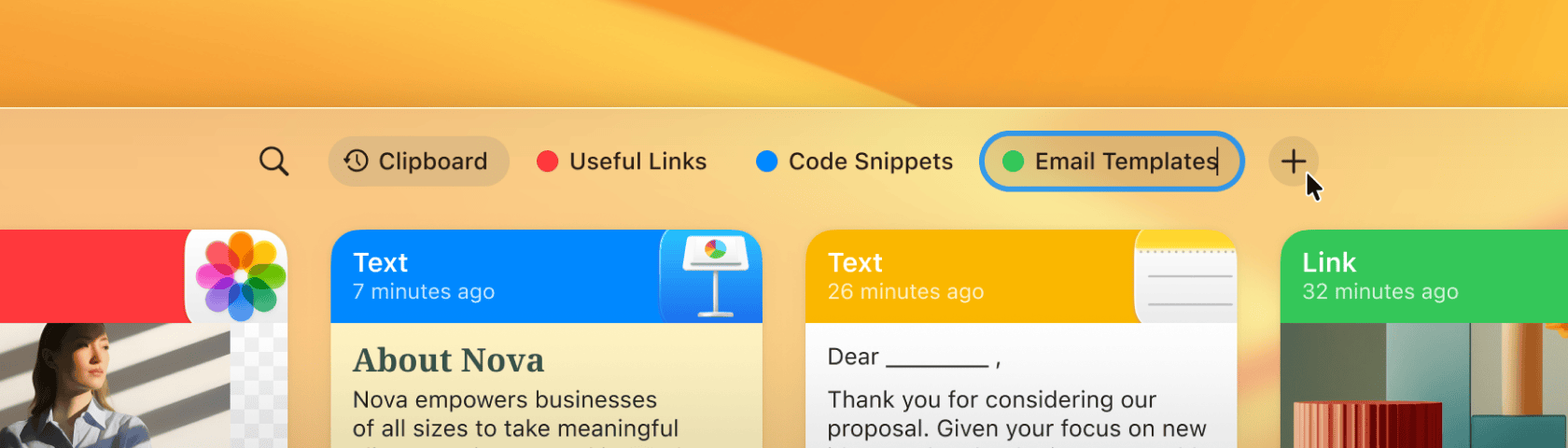
When creating a pinboard, you give it a name and choose a color. The color helps you quickly recognize and visually differentiate pinboards as you work.
On Mac, a new pinboard is created using the + button in the toolbar. On iOS devices, the + button in the pinboards list does the same.
Pinboards can be updated or deleted at any time from the pinboard’s context menu. Deleting a pinboard also removes all items inside it.
Pinboards in the list can be reordered using drag and drop, making it easy to keep important pinboards within reach.
Adding and Managing Items
Items can be added to a pinboard in several ways:
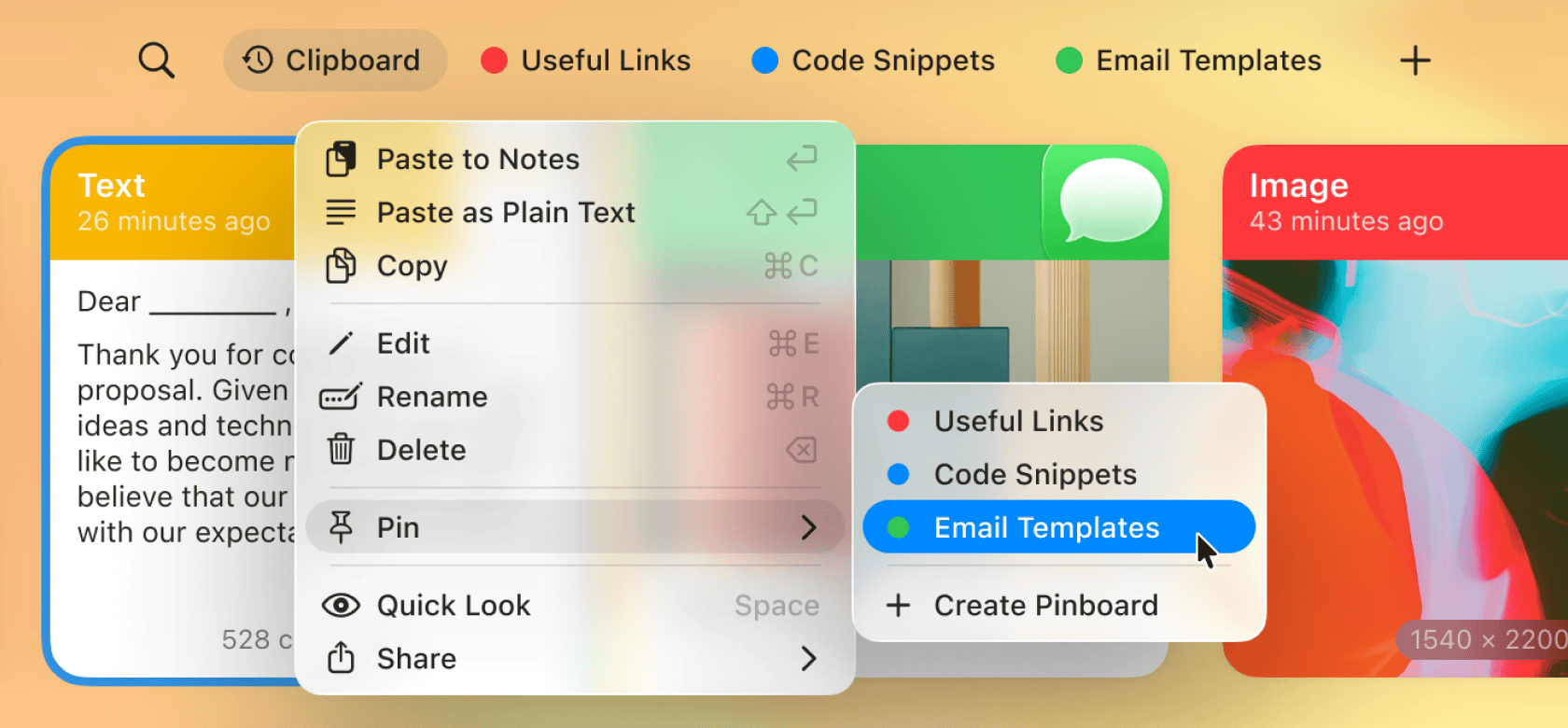
Pin items directly from your clipboard history using the Pin action in the item’s context menu
Drag items into a pinboard
Save new content straight into a specific pinboard
Each item can belong to one pinboard at a time. Moving an item to another pinboard simply moves it there.
Items inside a pinboard can be reordered using drag and drop. Items can also be removed from a pinboard at any time.
Pinned items are kept in your pinboards even when they’re no longer part of your clipboard history. This makes pinboards a reliable place to keep content you want to reuse later.
Items can always be pasted into any app and stay in sync across your devices.
Collaborate with Pinboards
Pinboards can be shared when you want to work with others. You can share a pinboard with your team, friends, or family.
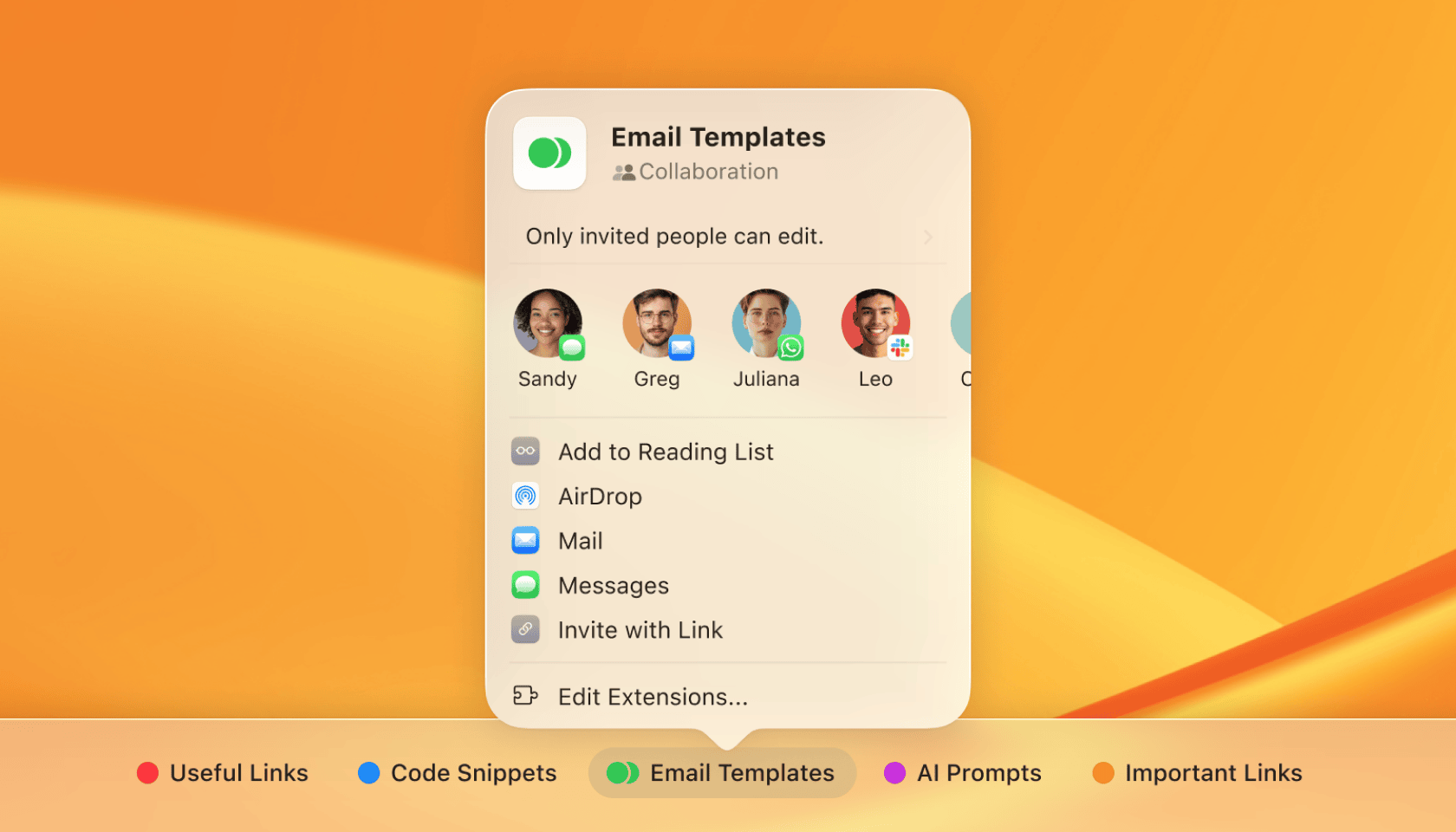
You can invite other people, control their access, and manage permissions. Everyone with access sees the same content, and all items stay in sync automatically.
To learn more about sharing and collaboration, see Shared Pinboards.
Pinboards are where Paste turns from a simple clipboard history into something you can organize and reuse over time.
Instead of keeping everything in one long list, pinboards let you group items by topic, project, or purpose. You decide what belongs together, and Paste keeps it easy to access whenever you need it, across all your devices.
What is a Pinboard?
A pinboard is a collection of items you want to keep around.
You can add text snippets, links, images, code, or any other copied content to a pinboard and come back to it later. Unlike your regular clipboard history, pinboards don’t expire or disappear. They’re designed for content you want to keep and reuse.
Common examples include:
Reusable text snippets and templates
Code snippets, commands, and terminal shortcuts
Design inspiration and visual references
Research links and collected resources
Project-related links, notes, and assets
Pinboards stay in sync across your Mac, iPhone, and iPad, so what you save in one place is always available everywhere.
Creating Pinboards
When creating a pinboard, you give it a name and choose a color. The color helps you quickly recognize and visually differentiate pinboards as you work.
On Mac, a new pinboard is created using the + button in the toolbar. On iOS devices, the + button in the pinboards list does the same.
Pinboards can be updated or deleted at any time from the pinboard’s context menu. Deleting a pinboard also removes all items inside it.
Pinboards in the list can be reordered using drag and drop, making it easy to keep important pinboards within reach.
Adding and Managing Items
Items can be added to a pinboard in several ways:
Pin items directly from your clipboard history using the Pin action in the item’s context menu
Drag items into a pinboard
Save new content straight into a specific pinboard
Each item can belong to one pinboard at a time. Moving an item to another pinboard simply moves it there.
Items inside a pinboard can be reordered using drag and drop. Items can also be removed from a pinboard at any time.
Pinned items are kept in your pinboards even when they’re no longer part of your clipboard history. This makes pinboards a reliable place to keep content you want to reuse later.
Items can always be pasted into any app and stay in sync across your devices.
Collaborate with Pinboards
Pinboards can be shared when you want to work with others. You can share a pinboard with your team, friends, or family.
You can invite other people, control their access, and manage permissions. Everyone with access sees the same content, and all items stay in sync automatically.
To learn more about sharing and collaboration, see Shared Pinboards.
Pinboards are where Paste turns from a simple clipboard history into something you can organize and reuse over time.
Instead of keeping everything in one long list, pinboards let you group items by topic, project, or purpose. You decide what belongs together, and Paste keeps it easy to access whenever you need it, across all your devices.
What is a Pinboard?
A pinboard is a collection of items you want to keep around.
You can add text snippets, links, images, code, or any other copied content to a pinboard and come back to it later. Unlike your regular clipboard history, pinboards don’t expire or disappear. They’re designed for content you want to keep and reuse.
Common examples include:
Reusable text snippets and templates
Code snippets, commands, and terminal shortcuts
Design inspiration and visual references
Research links and collected resources
Project-related links, notes, and assets
Pinboards stay in sync across your Mac, iPhone, and iPad, so what you save in one place is always available everywhere.
Creating Pinboards
When creating a pinboard, you give it a name and choose a color. The color helps you quickly recognize and visually differentiate pinboards as you work.
On Mac, a new pinboard is created using the + button in the toolbar. On iOS devices, the + button in the pinboards list does the same.
Pinboards can be updated or deleted at any time from the pinboard’s context menu. Deleting a pinboard also removes all items inside it.
Pinboards in the list can be reordered using drag and drop, making it easy to keep important pinboards within reach.
Adding and Managing Items
Items can be added to a pinboard in several ways:
Pin items directly from your clipboard history using the Pin action in the item’s context menu
Drag items into a pinboard
Save new content straight into a specific pinboard
Each item can belong to one pinboard at a time. Moving an item to another pinboard simply moves it there.
Items inside a pinboard can be reordered using drag and drop. Items can also be removed from a pinboard at any time.
Pinned items are kept in your pinboards even when they’re no longer part of your clipboard history. This makes pinboards a reliable place to keep content you want to reuse later.
Items can always be pasted into any app and stay in sync across your devices.
Collaborate with Pinboards
Pinboards can be shared when you want to work with others. You can share a pinboard with your team, friends, or family.
You can invite other people, control their access, and manage permissions. Everyone with access sees the same content, and all items stay in sync automatically.
To learn more about sharing and collaboration, see Shared Pinboards.
Learn more
Learn more
Learn more
© 2026 Paste Team ApS. All rights reserved.
All trademarks are the property of their respective owners.
© 2026 Paste Team ApS. All rights reserved.
All trademarks are the property of their respective owners.
© 2026 Paste Team ApS. All rights reserved.
All trademarks are the property of their respective owners.