


Deploy Paste in your organization
You can roll out Paste across your company in two ways: with a team plan from our website, or with seats in Apple Business. Here's how to set up each one.
Set up a team plan
A team plan covers your whole team on a single invoice, and everyone activates Paste with the same license key.
-
On the Paste for Teams page, choose the number of users and monthly or annual billing, then complete your purchase. You receive one license key with a seat for each user.
-
On each Mac, download Paste from our website and open it. Paste runs on macOS 14 or later.
-
Open Paste Settings → Subscription and choose Get started. In the window that opens, choose I have a license key, paste the key, and choose Activate.
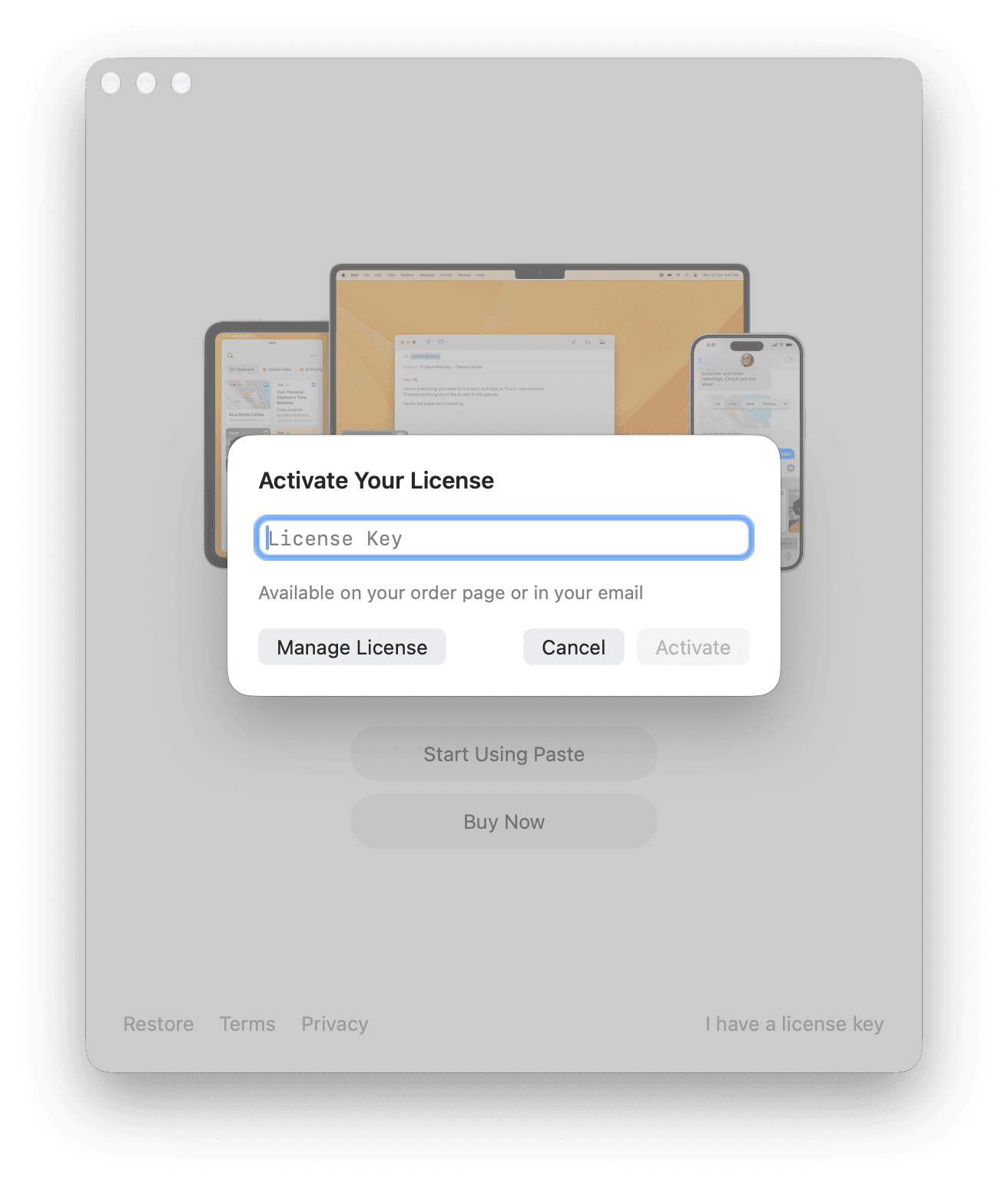
Each device that activates takes one seat. A person's Mac, iPhone, and iPad share one seat when all three use the same Apple Account with iCloud Keychain turned on. That person activates Paste on the Mac. Paste from the App Store then unlocks on their iPhone and iPad the next time they open it.
Without iCloud Keychain, each device takes a seat of its own. To activate an iPhone or iPad, install Paste from the App Store, then open this link on it, with your key in place of YOUR-KEY: paste://activate-license?key=YOUR-KEY. The same link works on a Mac.
To free a seat when someone leaves, or to change the number of seats, see Set up and manage Paste for Teams.
Set up Apple Business seats
If your company uses Apple Business or Apple School Manager, you can buy Paste there as seats and assign them to people. Apple bills your company, and there's no license key to share.
Before you buy, add a credit card as a shared payment method in Payments and Billing. VPP Credit can't be used for subscriptions.
-
In Apple Business, choose Apps & Services → Apps and Books → App Store, then choose View Store.
-
Search for Paste and select Paste – Limitless Clipboard.

-
Choose the Monthly or Annual subscription and the number of seats, then complete the purchase.
-
Assign a seat to each person. You can do it in the device management built into Apple Business, or in another service that supports app subscriptions.
Each person then installs Paste from the App Store, and it unlocks with their seat. On a device set up with account-driven enrollment, they need macOS 27, iOS 27, or iPadOS 27 or later.
You can add seats at any time and remove the ones that aren't assigned.
Permissions on the Mac
On macOS 15.4 or later, Paste asks each person to allow Pasteboard access, and it doesn't save anything until they do.
Accessibility access is optional. It lets people paste items directly into the app they're working in.
Intelligent Clipboard is optional too, and it asks for Screen Recording access. Intelligent Clipboard explains what it's used for.
Where the data lives
Clipboard History is stored on each person's own device. With Paste Settings → General → iCloud sync turned on, it also syncs through that person's private iCloud account. Nothing a person copies is sent to the Paste Team.
Paste skips passwords and sensitive data when it can detect them. In Paste Settings → Privacy, each person can add apps to Ignore Applications. Paste Settings → General → Keep History sets how long history is kept.
Paste sends us usage statistics and crash reports, which our privacy policy describes. With a team plan, Paste also sends us the license key. When a device activates, Paste sends that device's name too.
Shared Pinboards for teams
A team can keep the text, links, and files everyone reuses in a Shared Pinboard. To join, each person needs Paste and has to be signed in to iCloud with iCloud sync turned on. Collaborate with Shared Pinboards shows how to set one up.
Install with device management
If you install apps with a device management service, use these details for Paste from our website:
-
Download link for the latest version:
https://pasteapp.io/download/mac -
Bundle identifier:
com.wiheads.paste-direct -
Team ID:
4788TTJ39Y
Paste checks for updates once a day. By default, it asks the person before it installs one.
If you have any questions or need more help, contact us.